Self-Hosted CI/CD with Gitea Actions
If you're self-hosting your Git repositories with Gitea, you're probably tired of reaching for an external CI/CD service every time you want to automate a build or deployment. Gitea Actions brings GitHub Actions-compatible CI/CD directly into your Gitea instance — same workflow syntax, same runner model, but running entirely on your own hardware.
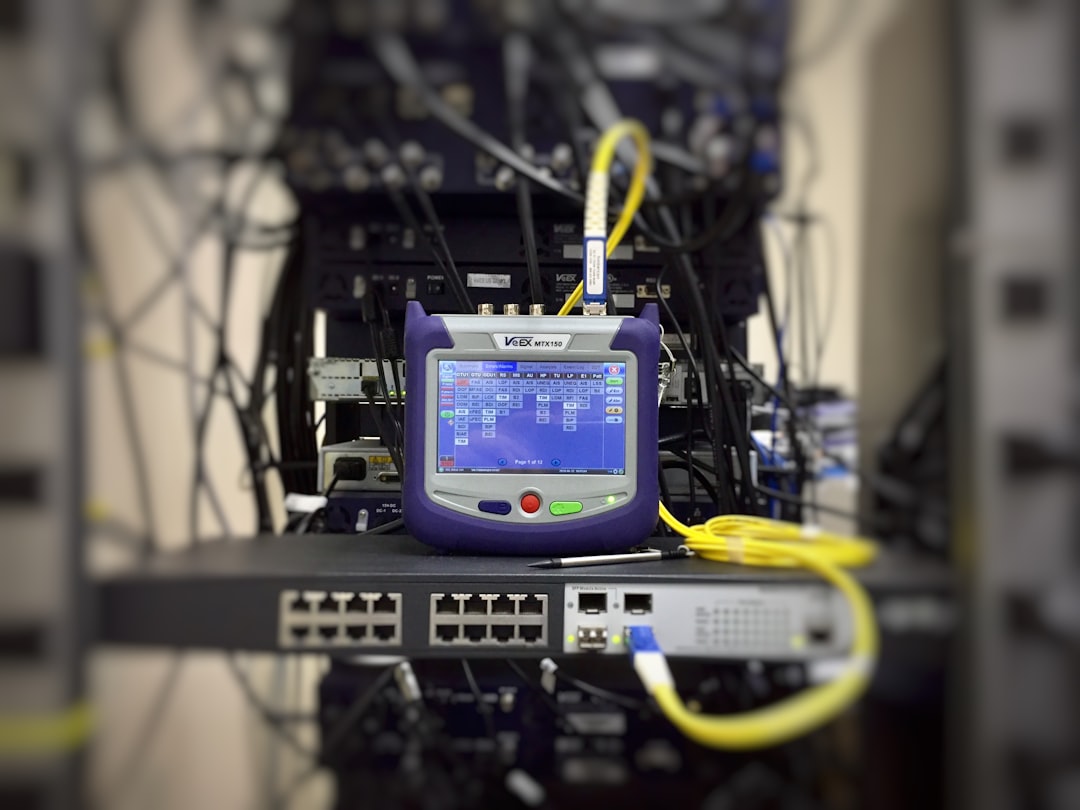
Photo by Ildefonso Polo on Unsplash
This guide walks through setting up Gitea Actions from scratch: installing Gitea, enabling Actions, configuring runners, writing workflows, building Docker images, and deploying to your homelab infrastructure. By the end, you'll have a fully self-hosted pipeline where pushing code triggers builds and deployments without ever touching a third-party service.

Why Gitea Actions Over Other CI/CD Tools
Before diving in, let's acknowledge the alternatives and when they make more sense.
Jenkins is the enterprise workhorse. It can do anything, but configuring it feels like filing taxes. The UI is dated, the plugin ecosystem is sprawling and inconsistent, and simple pipelines require more YAML and Groovy than you'd expect. If you already know Jenkins or need its specific integrations, it's fine. For a homelab, it's overkill.
Drone CI was the darling of self-hosted CI/CD for years. Lightweight, Docker-native, clean UI. But Drone's development has slowed significantly since the Harness acquisition, and the licensing became complicated. Gitea Actions is effectively Drone's spiritual successor for the Gitea ecosystem.
Woodpecker CI is a community fork of Drone that remains actively developed and works well with Gitea. It's a solid choice if you want something battle-tested with its own identity rather than GitHub Actions compatibility.
Gitea Actions wins for homelabs because:
- It reuses the GitHub Actions workflow syntax, so you can copy workflows from GitHub repos with minimal changes
- It's built into Gitea — no separate service to install and maintain
- The runner is lightweight and easy to set up
- If you already use Gitea, it's the path of least resistance
The trade-off: Gitea Actions is younger than the alternatives. Not every GitHub Action is compatible (anything that calls the GitHub API won't work), and some edge cases in workflow syntax aren't supported yet. For typical build-test-deploy pipelines, it works well.
Installing Gitea
If you don't already have Gitea running, here's a quick Docker Compose setup:
# ~/docker/gitea/docker-compose.yml
services:
  gitea:
    image: gitea/gitea:latest
    container_name: gitea
    restart: unless-stopped
    ports:
      - "3000:3000"
      - "2222:22"
    environment:
      - USER_UID=1000
      - USER_GID=1000
      - GITEA__database__DB_TYPE=sqlite3
      - GITEA__server__ROOT_URL=http://gitea.lab.example.com:3000
      - GITEA__server__SSH_DOMAIN=gitea.lab.example.com
      - GITEA__server__SSH_PORT=2222
    volumes:
      - ./data:/data
      - /etc/timezone:/etc/timezone:ro
      - /etc/localtime:/etc/localtime:ro
docker compose up -d
Visit http://your-server:3000 to complete initial setup. Create an admin account when prompted.
For production use, swap SQLite for PostgreSQL — SQLite is fine for small teams but becomes a bottleneck under concurrent access:
  gitea-db:
    image: postgres:16
    container_name: gitea-db
    restart: unless-stopped
    environment:
      POSTGRES_DB: gitea
      POSTGRES_USER: gitea
      POSTGRES_PASSWORD: change-this-password
    volumes:
      - gitea_pgdata:/var/lib/postgresql/data

volumes:
  gitea_pgdata:
Then set GITEA__database__DB_TYPE=postgres, GITEA__database__HOST=gitea-db:5432, and the corresponding credentials.
Enabling Gitea Actions
Actions is built into Gitea but disabled by default. Enable it in Gitea's configuration:
# In the Gitea config (data/gitea/conf/app.ini for Docker installs)
[actions]
ENABLED = true
Restart Gitea after making this change:
docker compose restart gitea
Once enabled, you'll see an "Actions" tab in repository settings and a new "Runners" section in the site administration panel.
Enable Actions Per-Repository
Actions must be enabled for each repository individually:
- Go to the repository's Settings > General
- Scroll to Advanced Settings
- Check Enable Repository Actions
- Save
You can also enable Actions by default for all new repositories in the site admin settings.
Want more automation guides? Get guides like this in your inbox — HomeLab Starter delivers one free deep-dive every week.
Setting Up the Gitea Actions Runner
The runner is a separate process that picks up jobs from Gitea and executes them. It's called act_runner and can run on the same machine as Gitea or on dedicated build machines.
Install act_runner
# Download the latest release
wget https://gitea.com/gitea/act_runner/releases/download/v0.2.11/act_runner-0.2.11-linux-amd64
chmod +x act_runner-0.2.11-linux-amd64
sudo mv act_runner-0.2.11-linux-amd64 /usr/local/bin/act_runner
Register the Runner
First, get a registration token from Gitea:
- Go to Site Administration > Runners
- Click Create new Runner
- Copy the registration token
Then register the runner:
# Generate a default config
act_runner generate-config > config.yaml

# Register with your Gitea instance
act_runner register \
  --instance http://gitea.lab.example.com:3000 \
  --token YOUR_REGISTRATION_TOKEN \
  --name homelab-runner \
  --labels ubuntu-latest:docker://node:20-bookworm,ubuntu-22.04:docker://ubuntu:22.04,self-hosted:host
The --labels flag is important. It maps workflow runs-on labels to execution environments:
ubuntu-latest:docker://node:20-bookworm— Jobs requestingubuntu-latestrun in a Node 20 Docker containerubuntu-22.04:docker://ubuntu:22.04— Jobs requestingubuntu-22.04run in an Ubuntu containerself-hosted:host— Jobs requestingself-hostedrun directly on the host machine
Configure the Runner
Edit config.yaml to tune the runner for your environment:
# config.yaml
runner:
  # How many jobs can run in parallel
  capacity: 4
  # Timeout for a single job
  timeout: 3h
  # Labels (set during registration, but can be updated here)
  labels:
    - "ubuntu-latest:docker://node:20-bookworm"
    - "ubuntu-22.04:docker://ubuntu:22.04"
    - "self-hosted:host"

container:
  # Network mode for Docker containers
  network: "bridge"
  # Privileged mode (needed for Docker-in-Docker)
  privileged: false
  # Mount the Docker socket (needed for building images)
  options: "-v /var/run/docker.sock:/var/run/docker.sock"
  # Workdir inside the container
  workdir_parent: /workspace
Run as a Systemd Service
Create /etc/systemd/system/act_runner.service:
[Unit]
Description=Gitea Actions Runner
After=network.target docker.service

[Service]
Type=simple
User=runner
Group=docker
WorkingDirectory=/opt/act_runner
ExecStart=/usr/local/bin/act_runner daemon -c /opt/act_runner/config.yaml
Restart=on-failure
RestartSec=10

[Install]
WantedBy=multi-user.target
# Create the runner user and directory
sudo useradd -r -s /bin/false runner
sudo mkdir -p /opt/act_runner
sudo cp config.yaml .runner /opt/act_runner/
sudo chown -R runner:docker /opt/act_runner

# Add runner to docker group (for building images)
sudo usermod -aG docker runner

# Start the service
sudo systemctl daemon-reload
sudo systemctl enable --now act_runner
Check that the runner appears as online in Gitea's admin panel under Runners.
Writing Your First Workflow
Gitea Actions uses the same workflow syntax as GitHub Actions. Workflow files go in .gitea/workflows/ (not .github/workflows/, though Gitea can read from .github/workflows/ if you enable the compatibility setting).
Basic Build and Test
# .gitea/workflows/ci.yml
name: CI

on:
  push:
    branches: [main]
  pull_request:
    branches: [main]

jobs:
  test:
    runs-on: ubuntu-latest
    steps:
      - name: Checkout code
        uses: actions/checkout@v4

      - name: Set up Node.js
        uses: actions/setup-node@v4
        with:
          node-version: '20'

      - name: Install dependencies
        run: npm ci

      - name: Run tests
        run: npm test

      - name: Run linter
        run: npm run lint
This is identical to what you'd write for GitHub Actions. The actions/checkout@v4 and actions/setup-node@v4 actions are fetched from GitHub by default. You can configure Gitea to use a mirror or your own action repositories if you want to stay fully self-hosted.
Using Gitea-Native Actions
To avoid depending on GitHub, Gitea provides its own versions of common actions:
steps:
  - name: Checkout
    uses: https://gitea.com/actions/checkout@v4

  - name: Setup Go
    uses: https://gitea.com/actions/setup-go@v5
    with:
      go-version: '1.22'
You can also host actions in your own Gitea repositories and reference them by their full URL.
Building Docker Images
One of the most common CI/CD tasks is building and pushing Docker images. Here's how to do it with Gitea Actions.
Building with Docker Socket
If you mounted the Docker socket in your runner config (the container.options setting above), containers can talk to the host's Docker daemon:
# .gitea/workflows/docker-build.yml
name: Build Docker Image

on:
  push:
    branches: [main]
    tags: ['v*']

jobs:
  build:
    runs-on: ubuntu-latest
    steps:
      - name: Checkout
        uses: actions/checkout@v4

      - name: Build image
        run: |
          docker build -t myapp:${{ gitea.sha }} .
          docker tag myapp:${{ gitea.sha }} myapp:latest

      - name: Push to local registry
        run: |
          docker tag myapp:latest registry.lab.example.com/myapp:latest
          docker tag myapp:${{ gitea.sha }} registry.lab.example.com/myapp:${{ gitea.sha }}
          docker push registry.lab.example.com/myapp:latest
          docker push registry.lab.example.com/myapp:${{ gitea.sha }}
Setting Up a Local Docker Registry
A private registry keeps your images on your own network:
# ~/docker/registry/docker-compose.yml
services:
  registry:
    image: registry:2
    container_name: registry
    restart: unless-stopped
    ports:
      - "5000:5000"
    volumes:
      - ./data:/var/lib/registry
    environment:
      REGISTRY_STORAGE_DELETE_ENABLED: "true"
If using an insecure (HTTP) registry, add it to Docker's daemon config on every machine that needs to pull from it:
// /etc/docker/daemon.json
{
  "insecure-registries": ["registry.lab.example.com:5000"]
}
Restart Docker after editing daemon.json: sudo systemctl restart docker.
Deploying to Your Homelab
The real payoff of self-hosted CI/CD is automated deployments. Here are three common patterns.
Pattern 1: SSH Deploy
The simplest approach — SSH into the target machine and run deployment commands:
# .gitea/workflows/deploy.yml
name: Deploy

on:
  push:
    branches: [main]

jobs:
  deploy:
    runs-on: self-hosted
    steps:
      - name: Deploy via SSH
        run: |
          ssh deploy@app-server.lab.example.com << 'EOF'
            cd /opt/myapp
            docker compose pull
            docker compose up -d
            docker image prune -f
          EOF
This requires SSH key access from the runner to the target. Set up a dedicated deploy user with limited permissions on the target machine.
Pattern 2: Docker Compose with Registry
Build the image, push to your local registry, then tell the target machine to pull and restart:
jobs:
  build:
    runs-on: ubuntu-latest
    steps:
      - uses: actions/checkout@v4
      - name: Build and push
        run: |
          docker build -t registry.lab.example.com:5000/myapp:latest .
          docker push registry.lab.example.com:5000/myapp:latest

  deploy:
    needs: build
    runs-on: self-hosted
    steps:
      - name: Pull and restart
        run: |
          ssh deploy@app-server << 'EOF'
            docker pull registry.lab.example.com:5000/myapp:latest
            cd /opt/myapp
            docker compose up -d
          EOF
Pattern 3: Webhook Deploy
Instead of SSH, trigger a webhook on the target machine. Tools like webhook listen for HTTP requests and run scripts:
      - name: Trigger deploy webhook
        run: |
          curl -X POST \
            -H "X-Deploy-Token: ${{ secrets.DEPLOY_TOKEN }}" \
            http://app-server.lab.example.com:9000/hooks/deploy-myapp
This avoids needing SSH access from the runner and keeps the deployment logic on the target machine.
Working with Secrets
Store sensitive values (SSH keys, registry credentials, API tokens) as repository or organization secrets:
- Go to the repository's Settings > Actions > Secrets
- Add a secret (e.g.,
DEPLOY_SSH_KEY,REGISTRY_PASSWORD) - Reference them in workflows:
env:
  REGISTRY_PASSWORD: ${{ secrets.REGISTRY_PASSWORD }}

steps:
  - name: Login to registry
    run: echo "$REGISTRY_PASSWORD" | docker login registry.lab.example.com -u deploy --password-stdin
Secrets are masked in logs automatically, just like GitHub Actions.
Multi-Architecture Builds
If your homelab includes ARM machines (Raspberry Pis, ARM servers), you can build multi-arch images:
      - name: Set up QEMU
        run: docker run --privileged --rm tonistiigi/binfmt --install all

      - name: Build multi-arch image
        run: |
          docker buildx create --use
          docker buildx build \
            --platform linux/amd64,linux/arm64 \
            -t registry.lab.example.com:5000/myapp:latest \
            --push .
Caching Dependencies
Speed up builds by caching dependencies between runs. Gitea Actions supports the same caching mechanism as GitHub Actions:
      - name: Cache node modules
        uses: actions/cache@v4
        with:
          path: ~/.npm
          key: ${{ runner.os }}-node-${{ hashFiles('**/package-lock.json') }}
          restore-keys: |
            ${{ runner.os }}-node-

      - name: Install dependencies
        run: npm ci
Monitoring Your CI/CD Pipeline
Runner Health
Check runner status in Gitea's admin panel. If a runner goes offline, Gitea will show it as inactive. Set up a simple health check:
# Check if act_runner process is running
systemctl is-active act_runner

# Check runner logs
journalctl -u act_runner -f --no-pager -n 50
Build Notifications
Add a notification step to your workflows for visibility:
      - name: Notify on failure
        if: failure()
        run: |
          curl -H "Content-Type: application/json" \
            -d '{"content": "Build failed: ${{ gitea.repository }}@${{ gitea.sha }}"}' \
            ${{ secrets.DISCORD_WEBHOOK }}
Gotchas and Tips
GitHub Actions compatibility is not 100%: Actions that use the GitHub API (github.rest, octokit) won't work. Actions that are pure Docker or JavaScript usually work fine. Test before relying on them.
Container labels matter: If your workflow uses runs-on: ubuntu-latest but your runner doesn't have that label mapped, the job will hang in "waiting" state forever. Double-check your runner labels.
Docker socket security: Mounting the Docker socket gives containers root-equivalent access to the host. This is fine in a trusted homelab. For anything more, look into rootless Docker or Sysbox.
Disk space: CI builds generate a lot of temporary files and Docker layers. Set up periodic cleanup:
# Cron job to clean up Docker resources
0 3 * * * docker system prune -af --volumes --filter "until=72h"
Start simple: Your first workflow should be a basic build-and-test. Add deployment automation once you trust the build pipeline. Add caching and multi-arch builds once the basics work. Incremental complexity beats a complex setup that doesn't work.
Gitea Actions gives you a GitHub Actions-compatible CI/CD system running entirely on your own hardware. For a homelab, that means your code, your builds, and your deployments all stay under your control — and you learn how the whole pipeline works by setting it up yourself.