Remote Access for Your Home Lab: DDNS, Tunnels, and VPNs
You've built your home lab. Services are running. Everything works great from your desk. Then you leave the house, pull out your phone, and realize you can't reach any of it. Remote access is one of those things that feels like it should be simple but involves a surprising number of decisions about security, networking, and architecture.
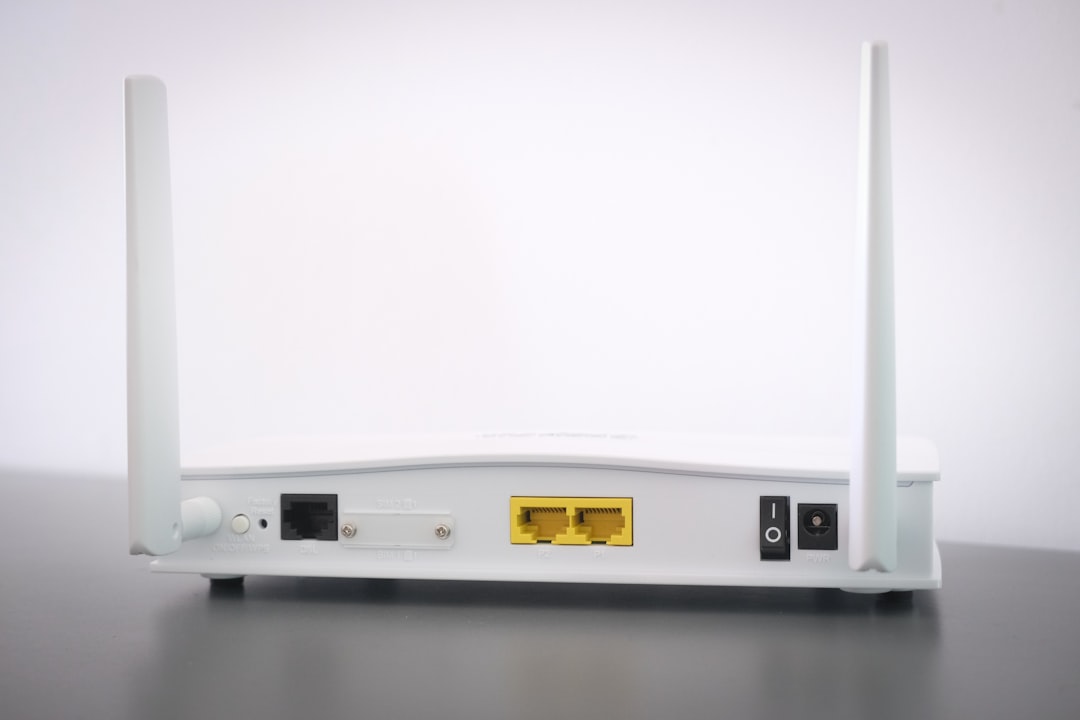
Photo by Compare Fibre on Unsplash
The fundamental problem: your home lab has a private IP address behind your router's NAT. The internet can't reach it directly. You need to bridge that gap, and there are several ways to do it — each with different security implications, complexity levels, and trade-offs.

Option 1: Dynamic DNS + Port Forwarding
This is the traditional approach. Your ISP gives your router a public IP address. You forward specific ports through your router to your home lab server. A Dynamic DNS (DDNS) service gives you a hostname that tracks your changing IP.
How DDNS Works
Most residential ISPs assign dynamic IP addresses — your public IP changes periodically (sometimes daily, sometimes monthly). DDNS services give you a hostname (like mylab.duckdns.org) and provide a way to update the DNS record whenever your IP changes.
You → mylab.duckdns.org → [DNS lookup] → 73.162.x.x → Your Router → Port Forward → Home Lab
Popular DDNS Providers
| Provider | Cost | Features |
|---|---|---|
| DuckDNS | Free | Simple, reliable, API-based updates |
| Cloudflare | Free (with domain) | Full DNS management, API, proxy/CDN |
| No-IP | Free (limited) | Web UI, clients for many platforms |
| Dynu | Free | Multiple hostnames, wildcard support |
| FreeDNS (afraid.org) | Free | Large selection of shared domains |
Setting Up DuckDNS
DuckDNS is the simplest free option. Sign in with GitHub/Google, pick a subdomain, and set up automatic updates:
# Create the update script
mkdir -p ~/duckdns
cat > ~/duckdns/duck.sh << 'SCRIPT'
#!/bin/bash
echo url="https://www.duckdns.org/update?domains=YOUR_SUBDOMAIN&token=YOUR_TOKEN&ip=" | curl -k -o ~/duckdns/duck.log -K -
SCRIPT
chmod 700 ~/duckdns/duck.sh

# Set up a cron job to update every 5 minutes
(crontab -l 2>/dev/null; echo "*/5 * * * * ~/duckdns/duck.sh >/dev/null 2>&1") | crontab -
Setting Up Cloudflare DDNS
If you own a domain and use Cloudflare for DNS (which you should — it's free and fast), you can update DNS records directly via the API. This is better than most DDNS services because you use your own domain and get Cloudflare's features.
#!/bin/bash
# cloudflare-ddns.sh
# Updates a Cloudflare DNS A record with your current public IP

ZONE_ID="your_zone_id"
RECORD_ID="your_record_id"
API_TOKEN="your_api_token"
RECORD_NAME="lab.yourdomain.com"

# Get current public IP
CURRENT_IP=$(curl -s https://api.ipify.org)

# Get the IP currently in DNS
DNS_IP=$(curl -s -X GET \
  "https://api.cloudflare.com/client/v4/zones/$ZONE_ID/dns_records/$RECORD_ID" \
  -H "Authorization: Bearer $API_TOKEN" \
  -H "Content-Type: application/json" | jq -r '.result.content')

# Update only if changed
if [ "$CURRENT_IP" != "$DNS_IP" ]; then
  curl -s -X PUT \
    "https://api.cloudflare.com/client/v4/zones/$ZONE_ID/dns_records/$RECORD_ID" \
    -H "Authorization: Bearer $API_TOKEN" \
    -H "Content-Type: application/json" \
    --data "{\"type\":\"A\",\"name\":\"$RECORD_NAME\",\"content\":\"$CURRENT_IP\",\"ttl\":300,\"proxied\":false}"
  echo "$(date): Updated DNS to $CURRENT_IP"
fi
# Run every 5 minutes
(crontab -l 2>/dev/null; echo "*/5 * * * * /path/to/cloudflare-ddns.sh >> /var/log/ddns.log 2>&1") | crontab -
Port Forwarding: The Security Problem
DDNS alone doesn't provide access — you also need to forward ports through your router. This is where things get risky.
When you forward port 443 to your reverse proxy, you're telling your router: "send all incoming traffic on this port directly to my server." Anyone on the internet can now reach that service. Your server's security becomes the only thing between the internet and your home network.
Risks of port forwarding:
- Exposed attack surface: Every forwarded port is a door that the entire internet can knock on
- Misconfigured services: One bad reverse proxy config or unpatched service and you're compromised
- IP scanning: Automated scanners will find your open ports within hours
- Your home IP is exposed: Anyone can see your public IP in DNS records (unless proxied through Cloudflare)
If you port forward, at minimum:
- Use a reverse proxy (Nginx Proxy Manager, Traefik, Caddy) with TLS
- Only forward ports 80 and 443
- Never forward SSH (port 22) directly to the internet
- Keep everything updated
- Use fail2ban or similar intrusion prevention
- Consider Cloudflare proxy to hide your real IP
Port forwarding works and millions of people do it. But there are better options now.
Option 2: Cloudflare Tunnel (Zero-Trust Access)
Cloudflare Tunnel is a fundamental shift from port forwarding. Instead of opening ports on your router, you run a daemon (cloudflared) on your server that creates an outbound connection to Cloudflare's edge network. Traffic flows through Cloudflare to your server — no open ports, no exposed IP address.
You → Cloudflare Edge → [Encrypted Tunnel] → cloudflared on your server → Your service
Why Tunnels Are Better Than Port Forwarding
- No open ports: Your router firewall stays completely closed. No port forwarding configuration at all.
- Hidden IP: Your home IP never appears in DNS records. Cloudflare proxies everything.
- DDoS protection: Cloudflare absorbs attacks before they reach your connection.
- Works through CGNAT: Since the tunnel is outbound, it works even if your ISP uses Carrier-Grade NAT (which would break port forwarding entirely).
- Access policies: You can add Cloudflare Access rules requiring authentication before anyone reaches your services.
Setting Up Cloudflare Tunnel
# Install cloudflared
# Debian/Ubuntu
curl -fsSL https://pkg.cloudflare.com/cloudflare-main.gpg | sudo tee /usr/share/keyrings/cloudflare.gpg
echo "deb [signed-by=/usr/share/keyrings/cloudflare.gpg] https://pkg.cloudflare.com/cloudflared $(lsb_release -cs) main" | sudo tee /etc/apt/sources.list.d/cloudflared.list
sudo apt update && sudo apt install cloudflared

# Authenticate
cloudflared tunnel login
# This opens a browser to authorize with your Cloudflare account

# Create a tunnel
cloudflared tunnel create homelab
# Outputs: Created tunnel homelab with id xxxxxxxx-xxxx-xxxx-xxxx-xxxxxxxxxxxx

# Configure the tunnel
cat > ~/.cloudflared/config.yml << 'EOF'
tunnel: xxxxxxxx-xxxx-xxxx-xxxx-xxxxxxxxxxxx
credentials-file: /home/youruser/.cloudflared/xxxxxxxx.json

ingress:
  - hostname: grafana.yourdomain.com
    service: http://localhost:3000
  - hostname: jellyfin.yourdomain.com
    service: http://localhost:8096
  - hostname: nextcloud.yourdomain.com
    service: http://localhost:8080
  # Catch-all rule (required)
  - service: http_status:404
EOF

# Create DNS records
cloudflared tunnel route dns homelab grafana.yourdomain.com
cloudflared tunnel route dns homelab jellyfin.yourdomain.com
cloudflared tunnel route dns homelab nextcloud.yourdomain.com

# Run the tunnel
cloudflared tunnel run homelab
Running as a System Service
# Install as a systemd service
sudo cloudflared service install

# Or manually create the service
sudo cloudflared tunnel --config /home/youruser/.cloudflared/config.yml run homelab
Adding Authentication with Cloudflare Access
Cloudflare Access lets you require authentication before anyone can reach your tunneled services. This is powerful — even if someone knows the URL, they can't access the service without authenticating through Cloudflare.
In the Cloudflare Zero Trust dashboard:
- Go to Access > Applications
- Create an application for each service
- Set up policies (email-based, GitHub, Google, one-time PIN)
For example, you can require a one-time PIN sent to your email before accessing Grafana. Your Jellyfin instance can be left open (it has its own auth). Fine-grained control per service.
Trade-Offs
- Cloudflare dependency: If Cloudflare has an outage, your remote access is down. This has happened (rarely).
- Cloudflare sees your traffic: Traffic is decrypted at Cloudflare's edge before being re-encrypted to your tunnel. For most home lab use, this is fine. For truly sensitive applications, consider a VPN.
- Terms of Service: Cloudflare's free tier TOS technically restrict serving large amounts of non-HTML content (like video streaming). For personal use, this is generally fine, but be aware.
- Latency: Traffic goes through Cloudflare's network, adding a hop. For web applications, this is negligible. For latency-sensitive applications (game servers, real-time protocols), it adds measurable delay.
Option 3: VPN-Based Access
VPNs create an encrypted tunnel between your device and your home network. Once connected, your device acts as if it's on your home LAN — you can reach everything by its local IP address. No individual services exposed, no DNS configuration per service.
WireGuard: The Modern Standard
WireGuard is a modern VPN protocol that's fast, simple, and built into the Linux kernel. It's the foundation that both Tailscale and other modern VPN solutions build on.
# Install WireGuard
sudo apt install wireguard    # Debian/Ubuntu
sudo dnf install wireguard-tools  # Fedora

# Generate keys
wg genkey | tee server_private.key | wg pubkey > server_public.key
wg genkey | tee client_private.key | wg pubkey > client_public.key
Server configuration (/etc/wireguard/wg0.conf):
[Interface]
PrivateKey = <server_private_key>
Address = 10.0.0.1/24
ListenPort = 51820
PostUp = iptables -A FORWARD -i wg0 -j ACCEPT; iptables -t nat -A POSTROUTING -o eth0 -j MASQUERADE
PostDown = iptables -D FORWARD -i wg0 -j ACCEPT; iptables -t nat -D POSTROUTING -o eth0 -j MASQUERADE

[Peer]
PublicKey = <client_public_key>
AllowedIPs = 10.0.0.2/32
Client configuration:
[Interface]
PrivateKey = <client_private_key>
Address = 10.0.0.2/24
DNS = 192.168.1.1

[Peer]
PublicKey = <server_public_key>
Endpoint = mylab.duckdns.org:51820
AllowedIPs = 10.0.0.0/24, 192.168.1.0/24
PersistentKeepalive = 25
# Start the WireGuard interface
sudo wg-quick up wg0
sudo systemctl enable wg-quick@wg0
WireGuard requires one forwarded port (51820/UDP by default) on your router. But unlike HTTP port forwarding, WireGuard's attack surface is minimal — the protocol only responds to packets with valid cryptographic keys. Unauthenticated packets are silently dropped.
Tailscale: WireGuard Without the Work
Tailscale wraps WireGuard in a management layer that handles key distribution, NAT traversal, and device coordination. No port forwarding, no dynamic DNS, no key management. Covered in detail in our Tailscale guide, but the key points:
# Install and connect — that's it
curl -fsSL https://tailscale.com/install.sh | sh
sudo tailscale up

# Access your home lab from anywhere
ssh homelab-server    # Just works
- No port forwarding needed: Tailscale punches through NAT
- Works through CGNAT: No public IP required
- Automatic key management: No key generation or distribution
- Free for personal use: Up to 100 devices, 3 users
- Trade-off: Tailscale's coordination server sees your device metadata (not traffic)
Headscale: Self-Hosted Tailscale
If you want Tailscale's UX without the external dependency, Headscale is an open-source implementation of the Tailscale coordination server. Your devices still use the official Tailscale client. You run the coordination server yourself on a VPS or at home.
Want more networking guides? Get guides like this in your inbox — HomeLab Starter delivers one free deep-dive every week.
Split DNS: Making Everything Work Smoothly
When you access services remotely, you use their public URLs (grafana.yourdomain.com). When you're at home, you might want those same URLs to resolve to local IPs for faster access (no round-trip through Cloudflare or your VPN).
Split DNS makes this work: your local DNS resolver returns internal IPs when you're home, and public DNS returns external-facing addresses when you're away.
With Pi-hole or AdGuard Home
Add DNS rewrites for your services:
# In Pi-hole: Local DNS > DNS Records
grafana.yourdomain.com → 192.168.1.100
jellyfin.yourdomain.com → 192.168.1.100
nextcloud.yourdomain.com → 192.168.1.100
With dnsmasq
# /etc/dnsmasq.d/local-overrides.conf
address=/grafana.yourdomain.com/192.168.1.100
address=/jellyfin.yourdomain.com/192.168.1.100
address=/nextcloud.yourdomain.com/192.168.1.100
With CoreDNS
yourdomain.com {
    file /etc/coredns/yourdomain.com.db
    log
}
Now when you're on your home network (using your local DNS), grafana.yourdomain.com resolves to 192.168.1.100 directly. When you're remote, it resolves through public DNS to your tunnel, VPN, or port-forwarded address.
This also solves the "hairpin NAT" problem — where accessing your public IP from inside your network doesn't work on some routers.
Security Considerations
What NOT to Do
- Don't expose SSH to the internet on port 22: Botnets hammer port 22 continuously. If you must expose SSH, use a non-standard port, key-only auth, and fail2ban. Better yet, use Tailscale or a VPN.
- Don't forward ports for admin interfaces: Proxmox (8006), router admin pages, database ports — these should never be directly reachable from the internet.
- Don't use HTTP: Always TLS. Let's Encrypt is free. Reverse proxies like Caddy handle it automatically.
- Don't forget about your other devices: Your home lab server might be locked down, but what about your IoT devices on the same network? Network segmentation (VLANs) limits blast radius.
Defense in Depth
The best setups layer multiple protections:
- Network layer: No open ports (Cloudflare Tunnel) or minimal ports (WireGuard UDP only)
- Authentication layer: Cloudflare Access, VPN authentication, or service-level auth
- Application layer: Each service has its own authentication (Jellyfin accounts, Grafana login, etc.)
- Network segmentation: VLANs separate your lab from IoT and guest devices
- Monitoring: Fail2ban, log monitoring, alerts on unusual access patterns
Comparison: Which Approach to Use
| Approach | Open Ports | Setup Effort | Security | Works Through CGNAT |
|---|---|---|---|---|
| DDNS + Port Forward | Yes (80, 443) | Medium | Moderate | No |
| Cloudflare Tunnel | None | Medium | High | Yes |
| WireGuard VPN | Yes (1 UDP) | Medium-High | Very High | No |
| Tailscale | None | Low | High | Yes |
Recommendations by Scenario
"I just want to access Jellyfin from my phone" Use Tailscale. Install it on your server and phone. Done in 5 minutes.
"I want public-facing services (blog, Nextcloud) accessible to others" Use Cloudflare Tunnel. No open ports, free TLS, easy to add Cloudflare Access for auth.
"I want full network access remotely and maximum control" Self-host WireGuard. One UDP port, kernel-level performance, zero external dependencies.
"I want it all with minimal effort" Cloudflare Tunnel for public services + Tailscale for private access. This is arguably the best combo for home labs — public services are protected by Cloudflare, private access works everywhere through Tailscale, and your router has zero open ports.
"My ISP uses CGNAT and I can't port forward" Cloudflare Tunnel or Tailscale. Both work without any port forwarding. WireGuard won't work without a relay (or you rent a cheap VPS as a WireGuard endpoint).
Getting Started
If you're setting up remote access for the first time, start with Tailscale. It takes 5 minutes, costs nothing, and works immediately. Once you have basic remote access working, you can layer on Cloudflare Tunnel for public-facing services or migrate to self-hosted WireGuard if you want more control.
The worst thing you can do is nothing — running a home lab with no remote access means you can't fix things when you're away, and you inevitably end up forwarding random ports in a panic when you need access urgently. Set it up properly now, when you have time to do it right.