Home Lab Networking Fundamentals: Everything You Need to Know
Networking is the invisible plumbing that makes your home lab work. Every service you deploy, every VM you spin up, every container you run — they all need to talk to each other and to the internet. If you don't understand the basics of how that communication works, you'll spend more time debugging connectivity issues than actually learning.
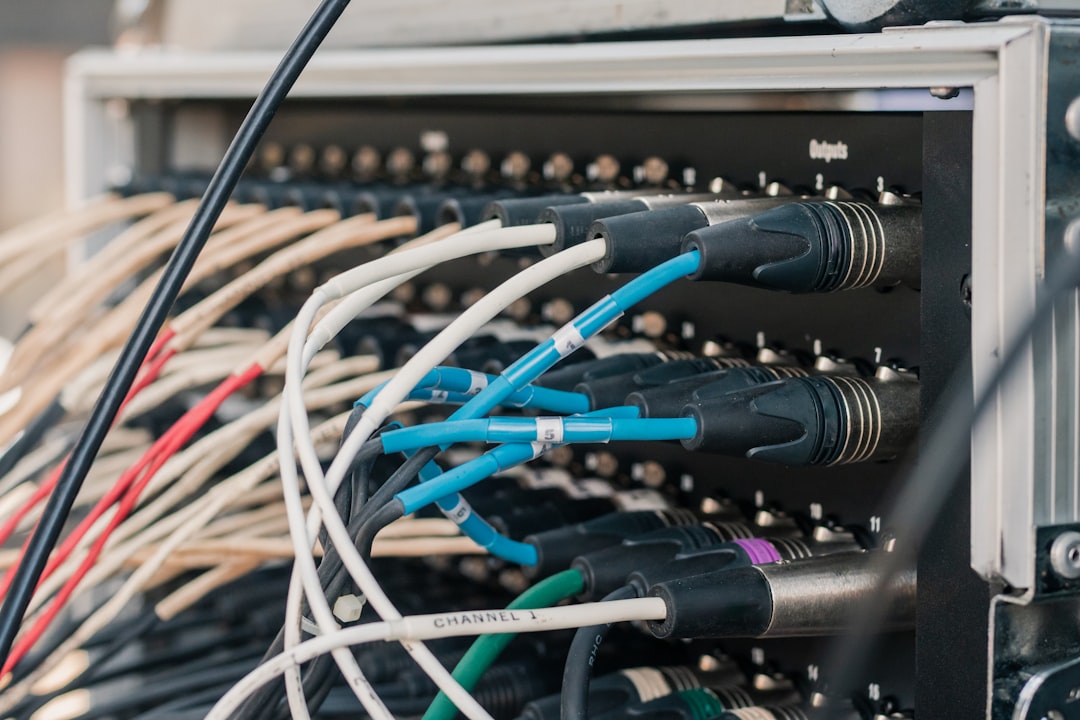
Photo by Victor Barrios on Unsplash
The good news is that networking fundamentals aren't complicated. They feel complicated because most explanations are written for people studying for the CCNA, not for someone who just wants to understand why their Proxmox VM can't reach the internet. This guide covers exactly what you need to know to build, troubleshoot, and grow a home lab network.

IP Addresses: The Basics
Every device on a network gets an IP address. Think of it as a mailing address — it tells other devices where to send data. In home labs, you'll deal almost exclusively with IPv4 addresses (IPv6 exists and is important, but you can safely ignore it when starting out).
An IPv4 address looks like 192.168.1.100. It's four numbers separated by dots, each ranging from 0 to 255. That's it.
Private vs Public IP Addresses
Not all IP addresses are equal. Some ranges are reserved for private use — meaning they're only valid inside your local network, not on the internet:
| Range | CIDR | Addresses | Common Use |
|---|---|---|---|
| 10.0.0.0 - 10.255.255.255 | 10.0.0.0/8 | ~16.7 million | Large corporate networks |
| 172.16.0.0 - 172.31.255.255 | 172.16.0.0/12 | ~1 million | Less common, some cloud providers |
| 192.168.0.0 - 192.168.255.255 | 192.168.0.0/16 | ~65,000 | Home networks |
Your home router gives devices addresses from the 192.168.x.x range (or sometimes 10.0.x.x). These addresses only work inside your network. Your ISP gives your router a single public IP address, and your router uses NAT (more on that later) to share that one public address with all your devices.
Special Addresses
A few addresses have special meaning:
- 127.0.0.1 (localhost): The device talking to itself. Every machine's loopback address.
- 0.0.0.0: In server contexts, means "listen on all interfaces." In routing, means "default route."
- 255.255.255.255: Broadcast to all devices on the local network.
- The first address in a subnet (e.g., 192.168.1.0): Network address. Can't be assigned to a device.
- The last address in a subnet (e.g., 192.168.1.255): Broadcast address. Can't be assigned to a device.
Subnetting: Dividing Your Network
Subnetting is where most beginners' eyes glaze over, but the concept is straightforward. A subnet defines which IP addresses belong to the same local network.
Subnet Masks
A subnet mask tells a device "which part of the IP address identifies the network, and which part identifies the device." The most common subnet mask for home networks is 255.255.255.0, also written as /24 in CIDR notation.
For 192.168.1.100/24:
- Network part: 192.168.1 (the first 24 bits)
- Host part: .100 (the last 8 bits)
- Usable range: 192.168.1.1 through 192.168.1.254 (254 usable addresses)
Two devices can talk directly (without a router) only if they're on the same subnet. If device A is 192.168.1.100/24 and device B is 192.168.2.100/24, they're on different subnets and need a router between them.
Common Subnet Sizes
| CIDR | Subnet Mask | Usable Hosts | Typical Use |
|---|---|---|---|
| /24 | 255.255.255.0 | 254 | Standard home network, individual VLANs |
| /25 | 255.255.255.128 | 126 | Smaller segments |
| /16 | 255.255.0.0 | 65,534 | Large flat networks (usually too big for home) |
| /30 | 255.255.255.252 | 2 | Point-to-point links between routers |
| /32 | 255.255.255.255 | 1 | Single host (used in routing tables, VPNs) |
For most home labs, /24 subnets are all you need. They give you 254 addresses per subnet, which is plenty. When you start using VLANs, you'll typically create one /24 subnet per VLAN.
A Quick Subnetting Example
Say you want to split your home lab into three segments:
Management:  192.168.1.0/24   (192.168.1.1 - 192.168.1.254)
Servers:     192.168.10.0/24  (192.168.10.1 - 192.168.10.254)
IoT:         192.168.20.0/24  (192.168.20.1 - 192.168.20.254)
Each segment is its own /24 subnet. Devices within a segment can talk freely. Traffic between segments must go through a router (or Layer 3 switch), where you can apply firewall rules.
DHCP: Automatic IP Assignment
DHCP (Dynamic Host Configuration Protocol) is the service that automatically assigns IP addresses to devices when they connect to the network. Your home router runs a DHCP server — that's why your phone gets an IP address without you doing anything.
How DHCP Works
- Device connects to the network and broadcasts "I need an IP address" (DHCP Discover)
- DHCP server responds with an available address (DHCP Offer)
- Device accepts the offer (DHCP Request)
- DHCP server confirms the assignment (DHCP Acknowledge)
The DHCP server assigns addresses from a configured range (called a "pool" or "scope"). A typical home router might assign from 192.168.1.100 to 192.168.1.254, reserving the lower addresses for static assignments.
DHCP Leases
Addresses aren't permanent — they're leased for a set duration (commonly 24 hours). When the lease expires, the device requests a renewal. If a device disconnects, its address eventually returns to the pool.
You can usually see active DHCP leases in your router's admin interface. This is useful for finding the IP address of a new device you just plugged in.
Static IPs vs DHCP Reservations
For servers and infrastructure devices, you want a consistent IP address. There are two ways to achieve this:
Static IP — configured directly on the device:
# /etc/netplan/00-config.yaml (Ubuntu/Debian)
network:
  version: 2
  ethernets:
    eno1:
      addresses:
        - 192.168.1.50/24
      routes:
        - to: default
          via: 192.168.1.1
      nameservers:
        addresses:
          - 192.168.1.1
sudo netplan apply
DHCP reservation — configured on the DHCP server (your router). The device still uses DHCP, but the server always gives it the same address based on its MAC address.
Both work. DHCP reservations are easier to manage centrally — you can see all assignments in one place. Static IPs are more resilient — the device works even if the DHCP server is down. For critical infrastructure like your DNS server or hypervisor, static IPs are generally safer.
Want more getting started guides? Get guides like this in your inbox — HomeLab Starter delivers one free deep-dive every week.
DNS: Turning Names into Addresses
DNS (Domain Name System) translates domain names (like google.com) into IP addresses (like 142.250.80.46). Without DNS, you'd have to memorize IP addresses for every website and service.
How DNS Works (Simplified)
- You type
example.comin your browser - Your computer asks its configured DNS server "What's the IP for example.com?"
- If that DNS server doesn't know, it asks upstream servers, eventually reaching the authoritative server for that domain
- The IP address comes back, your browser connects to it
DNS in a Home Lab
DNS matters in a home lab for three reasons:
Local name resolution: Instead of remembering 192.168.1.50, you can set up DNS so that proxmox.lab resolves to that address. Much easier.
Ad blocking: Services like Pi-hole and AdGuard Home act as DNS servers that block ad and tracker domains. Point your network's DNS to Pi-hole, and every device gets ad blocking automatically.
Split DNS: You can configure your local DNS server to resolve certain domains differently inside your network. For example, nextcloud.yourdomain.com could resolve to your server's local IP at home and the public IP when you're away.
A common home lab DNS setup:
Pi-hole (192.168.1.5)
├── Handles DNS for all devices on the network
├── Blocks ads and trackers
├── Resolves local names (proxmox.lab → 192.168.1.50)
└── Forwards unknown queries to upstream (1.1.1.1 or 8.8.8.8)
The /etc/hosts File
The simplest form of local DNS is the /etc/hosts file on each machine. It maps hostnames to IP addresses without needing a DNS server:
# /etc/hosts
192.168.1.50    proxmox proxmox.lab
192.168.1.51    nas nas.lab
192.168.1.52    docker docker.lab
This works fine for a few machines, but it doesn't scale — you'd have to update the file on every device whenever something changes. For anything beyond a couple of servers, run a proper DNS server.
Ports: How Services Share an IP Address
A single server can run dozens of services, but it only has one IP address. Ports solve this. Each service listens on a specific port number, and clients specify which port to connect to.
Think of the IP address as the building address and the port number as the apartment number. The address gets you to the building; the port gets you to the right service.
Common Ports
| Port | Service | Protocol |
|---|---|---|
| 22 | SSH | TCP |
| 53 | DNS | TCP/UDP |
| 80 | HTTP | TCP |
| 443 | HTTPS | TCP |
| 3306 | MySQL/MariaDB | TCP |
| 5432 | PostgreSQL | TCP |
| 8080 | HTTP (alternative) | TCP |
| 8096 | Jellyfin | TCP |
| 8443 | HTTPS (alternative) | TCP |
| 9090 | Prometheus / Cockpit | TCP |
| 9000 | Portainer | TCP |
Port numbers range from 0 to 65535:
- 0-1023: "Well-known" ports — reserved for standard services (HTTP, SSH, DNS). Require root/admin privileges to bind.
- 1024-49151: "Registered" ports — used by applications (databases, web apps, game servers).
- 49152-65535: "Dynamic" or "ephemeral" ports — used temporarily by client connections.
Checking Open Ports
# See what's listening on your server
sudo ss -tlnp

# Output shows listening ports and which process owns them:
# State    Recv-Q   Send-Q   Local Address:Port   Peer Address:Port   Process
# LISTEN   0        128      0.0.0.0:22           0.0.0.0:*           users:(("sshd",pid=1234))
# LISTEN   0        4096     0.0.0.0:80           0.0.0.0:*           users:(("nginx",pid=5678))

# Check if a specific port is open on a remote host
nc -zv 192.168.1.50 8096

# Scan a range of ports
nmap -p 1-1000 192.168.1.50
Port Conflicts
Two services can't listen on the same port on the same IP. If Nginx is already using port 80, Apache can't start on port 80. This is why Docker containers often use port mapping — the container listens on port 80 internally, but Docker maps it to port 8080 on the host:
# Map host port 8080 to container port 80
docker run -p 8080:80 nginx
NAT: Sharing One Public IP
NAT (Network Address Translation) is how your entire home network shares a single public IP address. Your ISP gives your router one public IP. NAT translates between your private internal addresses and that public address.
How NAT Works
- Your computer (
192.168.1.100) sends a request toexample.com - Your router rewrites the source address from
192.168.1.100to your public IP (e.g.,73.45.123.89) and remembers the mapping - The response comes back to
73.45.123.89 - Your router looks up the mapping and forwards the response to
192.168.1.100
This all happens transparently. You never notice it.
Port Forwarding
NAT creates a problem: devices on the internet can't initiate connections to your internal devices because they don't know the internal addresses. Port forwarding solves this by telling the router "any traffic arriving on port X should be forwarded to internal device Y."
Public IP:443 → 192.168.1.50:443 (your reverse proxy)
Public IP:25565 → 192.168.1.60:25565 (Minecraft server)
Port forwarding is the traditional way to expose home lab services to the internet, but it opens your network to the public internet. Modern alternatives like Cloudflare Tunnels, Tailscale, and WireGuard are generally safer.
Double NAT
If your ISP gives you a router and you plug your own router behind it, you end up with double NAT — two layers of address translation. This causes problems with port forwarding, VPNs, and some gaming. Solutions:
- Put the ISP router in bridge mode (turns off its routing, lets your router handle everything)
- Set up a DMZ on the ISP router pointing to your router (forwards all traffic)
- Use your ISP's router as the only router (less control but simpler)
Common Home Lab Network Topologies
The Simple Flat Network
ISP Modem/Router
      │
      ├── Desktop
      ├── Server 1
      ├── Server 2
      └── WiFi devices
Everything on one subnet, one switch (or using the router's built-in ports). This is where everyone starts, and it's perfectly fine for a small lab. No VLANs, no segmentation, minimal configuration.
Pros: Simple, no extra hardware needed, easy to troubleshoot. Cons: No isolation between devices, everything can see everything.
Router + Managed Switch
ISP Modem (bridge mode)
      │
  pfSense/OPNsense Router
      │
  Managed Switch
      ├── [VLAN 10] Desktop, Laptop
      ├── [VLAN 20] Server 1, Server 2, Server 3
      ├── [VLAN 30] IoT devices
      └── [VLAN 40] WiFi AP (Guest)
The most common home lab network. A dedicated firewall/router handles routing and VLANs. A managed switch handles VLAN tagging at the port level. This gives you proper segmentation without needing multiple physical networks.
Pros: Proper security segmentation, traffic control, professional-grade setup. Cons: Requires a managed switch and a dedicated router/firewall box.
Hyperconverged / Single-Server
ISP Router
      │
  Single Proxmox Server
      ├── VM: pfSense (router)
      ├── VM: Pi-hole (DNS)
      ├── LXC: Docker host
      └── LXC: NAS
Everything runs on one physical machine. The router, DNS, and all services are VMs or containers on a single hypervisor. This is tempting because you only need one box, but it creates a single point of failure — if the Proxmox server goes down, you lose your entire network, including routing and DNS.
Pros: Minimal hardware, low power consumption, great for learning. Cons: Single point of failure. If the hypervisor dies, everything dies, including your network.
Switches: Managed vs Unmanaged
A network switch connects devices together on a local network. Every home lab needs at least one.
Unmanaged Switches
Plug in cables, and they work. No configuration, no web interface, no VLAN support. Perfectly fine if you just need more Ethernet ports.
Good options: TP-Link TL-SG108 (8-port, ~$20), Netgear GS308 (8-port, ~$20).
Managed Switches
Add features like VLANs, port mirroring, link aggregation, and traffic monitoring. You configure them through a web interface or CLI.
"Smart managed" or "easy managed" switches are a middle ground — they support basic VLANs without the complexity (or cost) of a fully managed switch. For most home labs, a smart managed switch is plenty.
Good options for home labs:
| Type | Example | Price | Best For |
|---|---|---|---|
| Unmanaged | TP-Link TL-SG108 | ~$20 | Just need more ports |
| Smart managed | TP-Link TL-SG108E | ~$30 | Basic VLANs on a budget |
| Managed | Netgear GS308T | ~$50 | Full management, CLI access |
| Used enterprise | HP 2530-24G | ~$40 | 24 ports, full features, cheap |
When to Upgrade to Managed
You need a managed switch when you want to:
- Use VLANs to segment your network
- Trunk multiple VLANs over a single cable to a router or AP
- Monitor per-port traffic statistics
- Set up link aggregation (LAG) for higher throughput between devices
If none of those apply, an unmanaged switch is perfectly fine. Don't buy managed gear "just in case" — the unmanaged switch you already have works.
Putting It Together: A Typical Home Lab Network
Here's a practical example of a home lab network that uses everything we've covered:
ISP Modem (bridge mode)
      │
  pfSense Mini PC (192.168.1.1)
  ├── WAN: ISP connection
  └── LAN: Trunk to switch (all VLANs tagged)
      │
  TP-Link Managed Switch
      ├── Port 1 (trunk): pfSense
      ├── Port 2 (VLAN 10): Desktop PC
      ├── Port 3 (VLAN 20): Proxmox server
      ├── Port 4 (VLAN 20): NAS
      ├── Port 5 (VLAN 30): IoT hub
      └── Port 8 (trunk): WiFi AP
Network details:
VLAN 10 (Trusted):  192.168.10.0/24  — DHCP: .100-.254, DNS: Pi-hole
VLAN 20 (Lab):      192.168.20.0/24  — DHCP: .100-.254, DNS: Pi-hole
VLAN 30 (IoT):      192.168.30.0/24  — DHCP: .100-.254, DNS: 1.1.1.1
VLAN 40 (Guest):    192.168.40.0/24  — DHCP: .100-.254, DNS: 1.1.1.1
Static IPs for infrastructure:
pfSense:     192.168.1.1    (gateway for all VLANs)
Proxmox:     192.168.20.10  (static)
NAS:         192.168.20.11  (static)
Pi-hole:     192.168.20.5   (static — critical for DNS)
Troubleshooting Checklist
When something can't connect, work through this systematically:
# 1. Do you have an IP address?
ip addr show

# 2. Can you reach your gateway?
ping 192.168.1.1

# 3. Can you reach the internet by IP? (bypasses DNS)
ping 8.8.8.8

# 4. Can you resolve DNS names?
nslookup example.com
# or
dig example.com

# 5. Can you reach the specific service?
curl -v http://192.168.1.50:8096

# 6. Is the service actually listening?
sudo ss -tlnp | grep 8096
If step 2 fails, it's a Layer 2 or IP configuration problem (wrong subnet, cable issue, VLAN mismatch). If step 3 works but step 4 fails, it's a DNS issue. If step 4 works but step 5 fails, the problem is with the service itself or a firewall between you and the service.
Where to Go from Here
Once you're comfortable with the basics, these topics are natural next steps:
- VLANs — segment your network for security and organization
- DNS (Pi-hole or AdGuard Home) — ad blocking and local name resolution
- Reverse proxies (Traefik, Nginx Proxy Manager) — access services by name instead of IP:port
- VPNs (WireGuard, Tailscale) — secure remote access to your lab
- Firewall rules — control exactly what can talk to what
Networking is one of those skills where the fundamentals stay relevant forever. IP addressing, subnetting, DNS, and NAT work the same whether you're running a 2-node home lab or a data center. Learn it once, and you'll use it for the rest of your career.