GPU Passthrough in Proxmox: The Complete Guide
GPU passthrough lets a virtual machine directly access a physical GPU as if it were installed in a bare-metal system. The VM gets near-native GPU performance — not the watered-down, driver-emulated kind you get with virtual graphics adapters. This opens up use cases that were previously impossible in a virtualized home lab: hardware-accelerated Plex transcoding, AI/ML model training, gaming VMs, and CAD workstations.
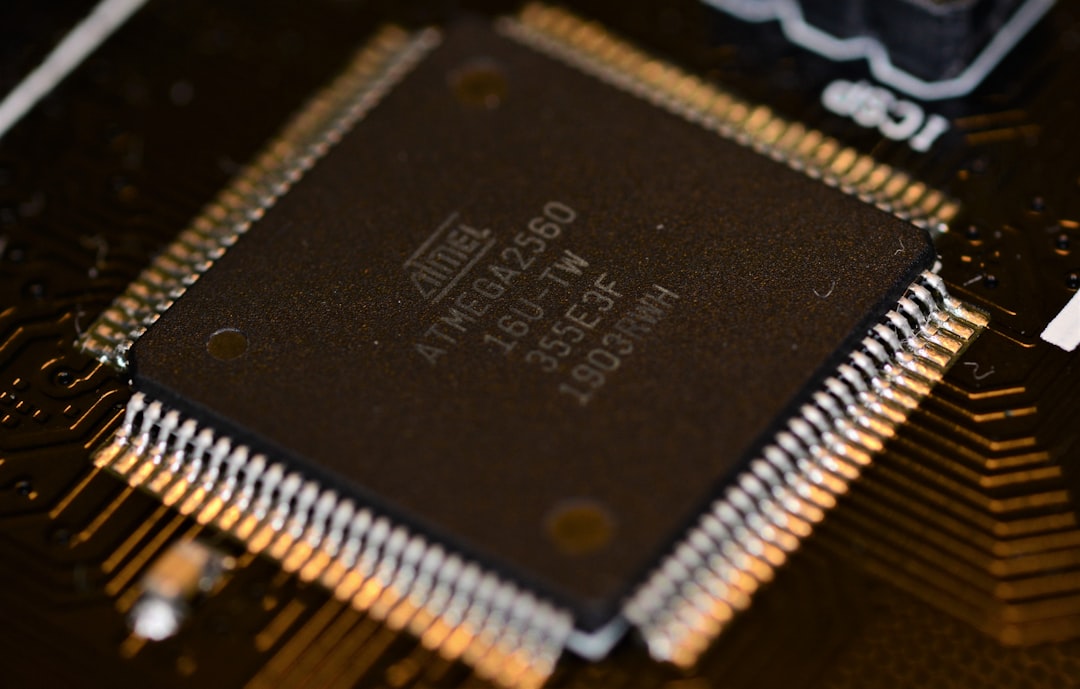
Photo by Akshat Sharma on Unsplash
Proxmox VE supports GPU passthrough using VFIO (Virtual Function I/O), which binds the GPU to a special driver that hands control to the VM. The concept is simple. The execution has historically been painful, full of cryptic kernel parameters, IOMMU group headaches, and vendor-specific quirks. This guide walks through the process on modern Proxmox (8.x) with both NVIDIA and AMD GPUs, covering the things that actually trip people up.

Prerequisites
Before you start, verify you have what you need:
Hardware requirements:
- A CPU that supports IOMMU (Intel VT-d or AMD-Vi)
- A motherboard with IOMMU support in BIOS
- A GPU you can dedicate to the VM (your host will lose access to it)
- A second GPU, integrated graphics, or headless operation for the Proxmox host
The critical constraint: When you pass a GPU through to a VM, the host can no longer use it. If your CPU has integrated graphics (most Intel desktop CPUs, AMD APUs), the host can use the iGPU while the VM gets the discrete GPU. If you're using a Xeon or Ryzen without integrated graphics, you'll need to manage the host headlessly via the web UI or SSH.
Software requirements:
- Proxmox VE 8.x (7.x works too, but 8.x has better defaults)
- A VM with an OS that has drivers for your GPU (Windows, Linux)
Step 1: Enable IOMMU in BIOS
IOMMU (Input/Output Memory Management Unit) is the hardware feature that makes passthrough possible. It creates isolated memory spaces for devices, allowing them to be safely assigned to VMs.
Reboot into your BIOS/UEFI settings and look for:
Intel systems:
- Intel VT-d: Enabled
- Intel VT-x: Enabled (should already be on for Proxmox)
AMD systems:
- AMD-Vi / IOMMU: Enabled
- SVM (Secure Virtual Machine): Enabled
The exact menu location varies by motherboard manufacturer. Check under "Advanced," "CPU Configuration," "Northbridge Configuration," or "Security."
Some additional BIOS settings that help:
- Above 4G Decoding: Enable (required for some GPUs with large BARs)
- Resizable BAR / Smart Access Memory: Disable (can cause issues with passthrough)
- CSM (Compatibility Support Module): Disable if possible (UEFI-only boot is cleaner)
- Primary Display: Set to your iGPU or onboard if available
Step 2: Configure the Proxmox Host
Enable IOMMU in the Bootloader
Edit the GRUB configuration:
nano /etc/default/grub
Find the line starting with GRUB_CMDLINE_LINUX_DEFAULT and add the IOMMU parameters:
For Intel CPUs:
GRUB_CMDLINE_LINUX_DEFAULT="quiet intel_iommu=on iommu=pt"
For AMD CPUs:
GRUB_CMDLINE_LINUX_DEFAULT="quiet amd_iommu=on iommu=pt"
The iommu=pt (passthrough) flag improves performance by only applying IOMMU to devices actually being passed through, rather than all devices.
Update GRUB:
update-grub
If using systemd-boot (some Proxmox installs, especially ZFS root):
nano /etc/kernel/cmdline
Add to the existing line:
intel_iommu=on iommu=pt
Or for AMD:
amd_iommu=on iommu=pt
Update the boot entry:
proxmox-boot-tool refresh
Load VFIO Modules
Add the VFIO kernel modules to load at boot:
nano /etc/modules
Add these lines:
vfio
vfio_iommu_type1
vfio_pci
Note: In newer kernels (6.2+), vfio_virqfd has been merged into the vfio module. You don't need to add it separately.
Reboot and Verify
reboot
After reboot, verify IOMMU is active:
dmesg | grep -e DMAR -e IOMMU
You should see messages like:
DMAR: IOMMU enabled
Or for AMD:
AMD-Vi: AMD IOMMUv2 loaded
Verify VFIO modules are loaded:
lsmod | grep vfio
You should see vfio_pci, vfio_iommu_type1, and vfio.
Want more virtualization guides? Get guides like this in your inbox — HomeLab Starter delivers one free deep-dive every week.
Step 3: Check IOMMU Groups
IOMMU groups are the fundamental unit of device isolation. You can only pass through an entire IOMMU group to a VM — not individual devices within a group. If your GPU shares an IOMMU group with your SATA controller or network card, you'd have to pass all of them or none.
List your IOMMU groups:
#!/bin/bash
shopt -s nullglob
for g in $(find /sys/kernel/iommu_groups/* -maxdepth 0 -type d | sort -V); do
    echo "IOMMU Group ${g##*/}:"
    for d in $g/devices/*; do
        echo -e "\t$(lspci -nns ${d##*/})"
    done;
done;
Save this as a script and run it:
chmod +x iommu-groups.sh
./iommu-groups.sh
What you want to see: Your GPU and its audio device in their own IOMMU group, separate from everything else.
IOMMU Group 14:
    01:00.0 VGA compatible controller [0300]: NVIDIA Corporation GA106 [GeForce RTX 3060] [10de:2503] (rev a1)
    01:00.1 Audio device [0403]: NVIDIA Corporation GA106 High Definition Audio Controller [10de:228e] (rev a1)
What's a problem: Your GPU grouped with other devices.
IOMMU Group 1:
    00:01.0 PCI bridge [0604]: Intel Corporation ...
    01:00.0 VGA compatible controller [0300]: NVIDIA Corporation ...
    01:00.1 Audio device [0403]: NVIDIA Corporation ...
    02:00.0 Ethernet controller [0200]: Intel Corporation ...
Dealing with Bad IOMMU Groups
If your GPU is lumped with other devices, your options are:
ACS override patch. An unofficial kernel patch that forces devices into separate groups. It works but reduces security isolation. Proxmox's pve-kernel supports it with a kernel parameter:
pcie_acs_override=downstream,multifunctionAdd this to your GRUB or systemd-boot cmdline. Use as a last resort.
Different PCIe slot. Try moving the GPU to a different slot. Some slots have better IOMMU grouping than others.
Different motherboard. Enterprise and server motherboards generally have better IOMMU group isolation. Consumer boards are hit-or-miss.
BIOS update. Some manufacturers fix IOMMU grouping in BIOS updates.
Step 4: Bind the GPU to VFIO
You need to prevent the host from loading a display driver for the GPU and instead bind it to the VFIO driver.
Find Your GPU's Device IDs
lspci -nn | grep -i nvidia
# or
lspci -nn | grep -i amd
Output example:
01:00.0 VGA compatible controller [0300]: NVIDIA Corporation GA106 [10de:2503] (rev a1)
01:00.1 Audio device [0403]: NVIDIA Corporation GA106 Audio [10de:228e] (rev a1)
The IDs are the vendor:device pairs in brackets: 10de:2503 and 10de:228e.
Configure VFIO to Claim the GPU
nano /etc/modprobe.d/vfio.conf
options vfio-pci ids=10de:2503,10de:228e disable_vga=1
Include both the GPU and its audio controller IDs.
Blacklist the Host GPU Drivers
Prevent the host from trying to use the GPU:
nano /etc/modprobe.d/blacklist.conf
For NVIDIA:
blacklist nouveau
blacklist nvidia
blacklist nvidiafb
blacklist nvidia_drm
For AMD:
blacklist amdgpu
blacklist radeon
Update initramfs
update-initramfs -u -k all
Reboot and Verify
reboot
Check that VFIO claimed the GPU:
lspci -nnk -s 01:00
You should see Kernel driver in use: vfio-pci for both the GPU and audio device:
01:00.0 VGA compatible controller [0300]: NVIDIA Corporation GA106 [10de:2503]
    Kernel driver in use: vfio-pci
01:00.1 Audio device [0403]: NVIDIA Corporation GA106 Audio [10de:228e]
    Kernel driver in use: vfio-pci
If you see nouveau, nvidia, amdgpu, or radeon instead, the blacklist didn't work. Double-check your config and regenerate initramfs.
Step 5: Configure the VM
Create the VM in Proxmox
Create a VM through the web UI with these settings:
- OS Type: Match your guest OS (Windows/Linux)
- Machine: q35 (required for PCIe passthrough)
- BIOS: OVMF (UEFI) — add an EFI disk when prompted
- CPU: Host (exposes your real CPU features to the VM)
- Memory: Allocate what you need, disable ballooning for GPU workloads
Important for Windows VMs: Download the VirtIO ISO from the Fedora project and attach it as a second CD-ROM. You'll need the VirtIO drivers during Windows installation for disk and network access.
Add the GPU to the VM
In the Proxmox web UI:
- Select your VM > Hardware > Add > PCI Device
- Select your GPU (e.g.,
01:00.0) - Check these options:
- All Functions: Yes (passes the GPU and its audio device together)
- Primary GPU: Yes (if this is the VM's only display output)
- ROM-Bar: Yes
- PCI-Express: Yes
Alternatively, edit the VM config directly:
nano /etc/pve/qemu-server/YOUR_VMID.conf
Add:
hostpci0: 0000:01:00,pcie=1,x-vga=1
machine: q35
bios: ovmf
cpu: host
The x-vga=1 flag tells QEMU this is the primary display. If you're passing a second GPU for compute only (not display), omit x-vga=1.
Remove the Default Display
Once the physical GPU is passed through as the primary display, remove or disable the virtual display:
- Set Display to
nonein the VM hardware settings
You'll get display output on the physical monitor connected to the passed-through GPU. Console access in the Proxmox UI will no longer show the VM's screen — use the physical display, RDP, or VNC instead.
NVIDIA-Specific Considerations
NVIDIA GPUs have quirks with passthrough that you need to handle.
The NVIDIA Code 43 Problem
Historically, NVIDIA's consumer (GeForce) drivers detected they were running in a VM and threw a "Code 43" error, refusing to work. This was NVIDIA's way of pushing people toward the much more expensive Quadro/Tesla cards for virtualization.
Good news: As of driver version 465+ (2021), NVIDIA removed this restriction for most GeForce cards. If you're running modern drivers, Code 43 usually isn't an issue. However, if you hit it:
Add to your VM config:
cpu: host,hidden=1,flags=+pcid
args: -cpu 'host,+kvm_pv_unhalt,+kvm_pv_eoi,hv_vendor_id=proxmox,kvm=off'
The hidden=1 and kvm=off flags hide the VM from NVIDIA's driver detection. The hv_vendor_id provides a fake Hyper-V vendor ID.
NVIDIA vGPU vs. Passthrough
Full passthrough dedicates the entire GPU to one VM. If you want to share an NVIDIA GPU between multiple VMs, you need vGPU — which requires a supported datacenter GPU (A-series, L-series) and an NVIDIA vGPU license.
For home labs, full passthrough is the practical choice. Consumer GeForce cards don't support vGPU, and the licensing cost for supported cards makes it impractical unless you're running a serious AI/ML setup.
GPU Reset Issues
Some NVIDIA GPUs (particularly older Pascal/Turing cards) have issues where the GPU won't reset properly after a VM shutdown. The GPU gets stuck in a bad state, and the only way to recover is to reboot the Proxmox host.
Workarounds:
Vendor-reset module. A kernel module that handles GPU reset for problematic cards:
apt install pve-headers-$(uname -r)
apt install git dkms
git clone https://github.com/gnif/vendor-reset.git
cd vendor-reset
dkms install .
echo "vendor-reset" >> /etc/modules
update-initramfs -u
Don't shut down, hibernate instead. Some users avoid the problem by always hibernating the VM instead of shutting it down.
Use a newer GPU. Ampere (RTX 30-series) and later cards generally handle resets correctly.
AMD-Specific Considerations
AMD GPUs are generally easier for passthrough. AMD doesn't restrict virtualization on consumer cards, and the open-source driver stack means fewer compatibility surprises.
AMD GPU Reset
AMD GPUs also had reset issues historically, especially Polaris (RX 400/500 series) and early Navi (RX 5000 series). The vendor-reset module mentioned above also supports AMD cards with reset problems.
RDNA2 (RX 6000 series) and later generally reset cleanly.
AMD Driver Considerations
- Windows VM: AMD's standard Adrenalin drivers work out of the box
- Linux VM: The
amdgpukernel driver works automatically, no special configuration needed - No anti-VM detection: AMD doesn't artificially restrict consumer GPUs in VMs
AMD APU Passthrough
If your CPU is an AMD APU (like the 5600G or 7600G), the integrated GPU uses the amdgpu driver. You can potentially pass this through to a VM, but it's tricky because the iGPU shares an IOMMU group with other platform devices. If you're using the iGPU for passthrough, you'll need a discrete GPU or headless operation for the host.
Use Cases
Plex/Jellyfin Hardware Transcoding
Passing a GPU to a Plex or Jellyfin VM enables hardware-accelerated transcoding. A single NVIDIA GPU can handle 10-20 simultaneous 1080p transcodes, compared to 1-3 with CPU-only.
For Plex, even a low-end NVIDIA GPU (GTX 1650, RTX 3050) is massively faster than CPU transcoding. Intel Quick Sync (via iGPU) is actually better value for pure transcoding — you don't need passthrough for that, just share the iGPU device. But if you need NVENC specifically or are already passing a GPU for other reasons, it works great.
Note: For Docker-based media servers, consider using the GPU as a shared device (not full passthrough) so the host and containers can use it simultaneously:
# Docker Compose with GPU access (no passthrough needed)
services:
  jellyfin:
    devices:
      - /dev/dri:/dev/dri    # Intel iGPU
    # Or for NVIDIA:
    deploy:
      resources:
        reservations:
          devices:
            - capabilities: [gpu]
Full passthrough is only needed when the GPU must be exclusively owned by a VM.
AI/ML Training and Inference
GPU passthrough gives a VM direct access to CUDA cores (NVIDIA) or ROCm compute (AMD). This is the preferred setup for home AI/ML work because:
- Full driver support inside the VM
- CUDA/cuDNN/PyTorch/TensorFlow work as expected
- VRAM is fully available (not shared)
- Performance is within 2-5% of bare metal
A popular setup: Proxmox host with an NVIDIA RTX card passed through to an Ubuntu VM running Jupyter Lab with PyTorch. The VM can be snapshotted, backed up, and restored without affecting the host.
Windows Gaming VM
Run Windows as a VM with a dedicated GPU for gaming. Combined with USB passthrough for a keyboard, mouse, and controller, you get a gaming setup that's nearly indistinguishable from bare metal.
Add to the VM config for USB passthrough:
usb0: host=1234:5678    # Keyboard vendor:product ID
usb1: host=abcd:ef01    # Mouse vendor:product ID
Find USB device IDs with:
lsusb
For the best gaming experience:
- CPU pinning: Dedicate specific CPU cores to the VM
- Hugepages: Allocate hugepages for VM memory to reduce latency
- CPU isolation: Use
isolcpuskernel parameter to keep the host off the pinned cores
# In VM config
cpu: host,hidden=1
cores: 8
numa: 1
hostpci0: 0000:01:00,pcie=1,x-vga=1

# CPU pinning (example for cores 8-15)
affinity: 8-15
Expect 95-98% of bare metal performance with proper configuration.
Multi-Seat Workstations
With two GPUs and GPU passthrough, one physical computer can serve two independent users. Each user gets their own VM with a dedicated GPU, monitor, keyboard, and mouse. Useful for households that need two workstations but only have budget/space for one powerful machine.
Troubleshooting
Black Screen on VM Start
- Verify the GPU is bound to
vfio-pci(notnouveau/nvidia/amdgpu) - Check that UEFI/OVMF is selected (not SeaBIOS)
- Ensure the monitor is connected to the right GPU output
- Try different display outputs (HDMI vs DisplayPort)
- Check VM logs:
journalctl -u qemu-server@VMID
VM Starts but No GPU in Device Manager (Windows)
- Verify "All Functions" and "PCI-Express" are checked in the PCI device config
- Check that the IOMMU group only contains the GPU devices
- Install the GPU driver inside the VM
- Check for BIOS "Above 4G Decoding" setting
Performance Is Poor
- Confirm CPU type is set to "host" (not "kvm64" or "qemu64")
- Enable hugepages for the VM
- Pin CPU cores to the VM
- Check that the PCIe slot is x16 electrical (not x4 or x1)
- Verify IOMMU passthrough mode (
iommu=ptin kernel cmdline)
GPU Won't Release After VM Shutdown
- Install the
vendor-resetkernel module - As a workaround, use VM hibernate instead of shutdown
- Upgrade to a newer GPU (Ampere/RDNA2+)
- Last resort: script a host reboot after VM shutdown
Host Crashes When Starting VM
- Check IOMMU group isolation
- Verify the GPU ROM is valid (some GPUs need a ROM file dumped and provided)
- Try without
x-vga=1first to test basic passthrough - Check
dmesgfor VFIO errors after the crash
Summary
GPU passthrough in Proxmox is a powerful capability that turns your home lab into a flexible compute platform. The setup process has gotten significantly easier over the years — IOMMU support is standard on modern hardware, VFIO is well-integrated in the kernel, and vendor-specific headaches (NVIDIA Code 43, AMD reset bugs) are largely resolved on current-generation hardware.
The steps, in summary:
- Enable IOMMU in BIOS (VT-d for Intel, AMD-Vi for AMD)
- Add kernel parameters (
intel_iommu=on iommu=ptoramd_iommu=on iommu=pt) - Load VFIO modules
- Verify IOMMU groups (GPU should be isolated)
- Bind the GPU to
vfio-pci - Blacklist host GPU drivers
- Create a q35/OVMF VM and add the GPU as a PCI device
If you have decent hardware from the last few years and a supported GPU, the whole process takes about 30 minutes. The payoff — native GPU performance in a virtual machine — is worth every minute of configuration.