Self-Hosted Git with Gitea: A Complete Setup Guide
There's a particular satisfaction in running git push and knowing the code lands on a machine you control, in a room you can walk into. Self-hosting Git isn't about distrust of GitHub — it's about owning your workflow. You get unlimited private repositories, custom integrations, no rate limits, and a platform that works even when your internet is down.
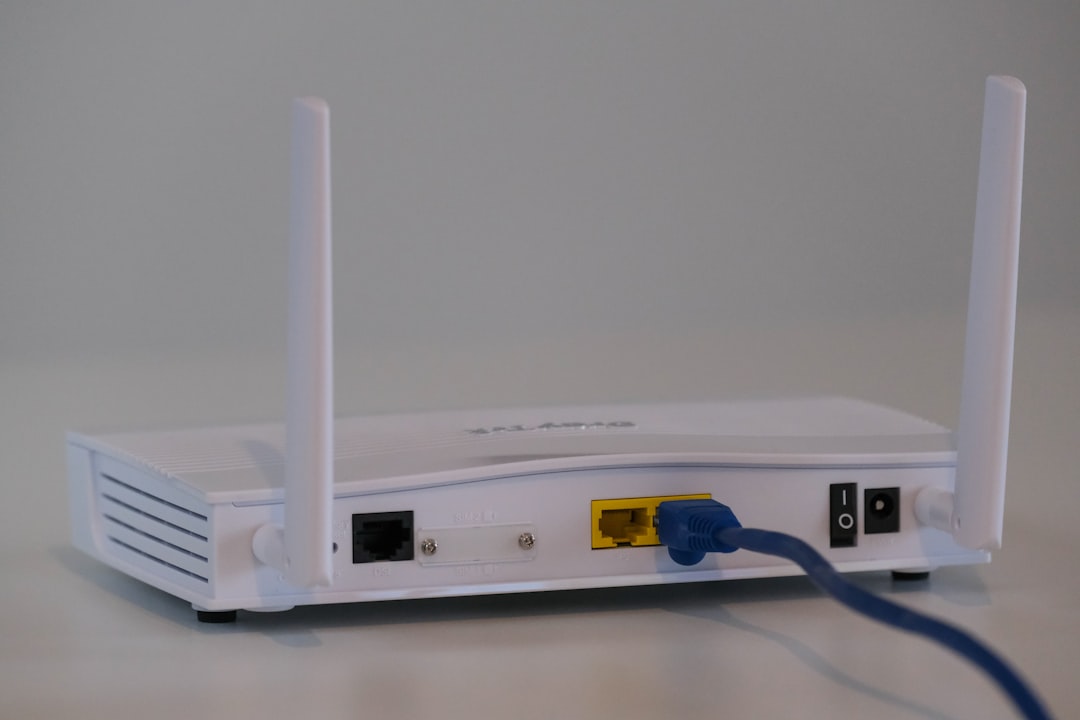
Photo by Compare Fibre on Unsplash
Gitea is the most popular choice for self-hosted Git in homelabs. It's a single binary written in Go, consumes minimal resources (a Raspberry Pi can run it comfortably), and provides a web interface that will feel immediately familiar if you've used GitHub. It includes issue tracking, pull requests, a package registry, and CI/CD — all without requiring a team of SREs to keep it running.

This guide covers the full lifecycle: choosing between Gitea and its alternatives, installing via Docker Compose, configuring the server, setting up HTTPS and SSH, managing users, mirroring repositories from GitHub, running CI/CD pipelines, backing up your data, and tuning performance for small servers.
Gitea vs Forgejo vs GitLab
Before installing anything, you should understand the landscape.
Gitea is the original lightweight, self-hosted Git server. It forked from Gogs in 2016 and has been actively maintained by a community of contributors. In 2023, Gitea Ltd. was formed as a for-profit company to fund development, which caused some friction in the community. Gitea remains open source under the MIT license.
Forgejo is a community fork of Gitea created in response to the Gitea Ltd. formation. It's maintained by Codeberg e.V., a non-profit. Forgejo tracks upstream Gitea closely and adds its own features (notably, federation support via ActivityPub). For practical purposes, Forgejo and Gitea are nearly identical in functionality and configuration. Docker images, config files, and workflows are interchangeable with minor adjustments. If you care about governance and want a non-profit-backed project, choose Forgejo. If you want the larger ecosystem and wider community, choose Gitea. You can switch between them later without losing data.
GitLab Community Edition is the enterprise-grade option. It provides a complete DevOps platform with built-in CI/CD, container registry, security scanning, and project management. The trade-off is resource consumption: GitLab recommends a minimum of 4 CPU cores and 4 GB of RAM, and in practice it wants more. For a homelab with limited resources, GitLab is like hiring a construction crew to build a birdhouse. If you already know GitLab from work and want the same experience at home, it's fine — just be prepared to dedicate a VM to it.
Gogs is Gitea's ancestor. It still exists but development has slowed significantly. There's little reason to choose Gogs over Gitea today.
For this guide, all instructions use Gitea. If you prefer Forgejo, replace gitea/gitea with codeberg/forgejo in Docker images and gitea with forgejo in paths. Everything else is the same.
Installation with Docker Compose
Docker Compose is the cleanest way to run Gitea in a homelab. It keeps the installation isolated, makes upgrades painless, and lets you define the entire stack in a single file.
Basic Setup with SQLite
For small installations (a handful of users, a few dozen repos), SQLite is perfectly adequate and avoids the overhead of a separate database server:
# ~/docker/gitea/docker-compose.yml
services:
  gitea:
    image: gitea/gitea:latest
    container_name: gitea
    restart: unless-stopped
    ports:
      - "3000:3000"
      - "2222:22"
    environment:
      - USER_UID=1000
      - USER_GID=1000
      - GITEA__database__DB_TYPE=sqlite3
      - GITEA__server__ROOT_URL=https://git.example.com/
      - GITEA__server__DOMAIN=git.example.com
      - GITEA__server__SSH_DOMAIN=git.example.com
      - GITEA__server__SSH_PORT=2222
      - GITEA__server__LFS_START_SERVER=true
    volumes:
      - ./data:/data
      - /etc/timezone:/etc/timezone:ro
      - /etc/localtime:/etc/localtime:ro
mkdir -p ~/docker/gitea
cd ~/docker/gitea
docker compose up -d
Visit http://your-server:3000 to complete the initial setup wizard. Create your admin account when prompted — this is the only time you can do so through the web interface without editing the config.
Production Setup with PostgreSQL
If you expect more than a few concurrent users, or you want the durability guarantees of a proper database, add PostgreSQL:
# ~/docker/gitea/docker-compose.yml
services:
  gitea:
    image: gitea/gitea:latest
    container_name: gitea
    restart: unless-stopped
    depends_on:
      - gitea-db
    ports:
      - "3000:3000"
      - "2222:22"
    environment:
      - USER_UID=1000
      - USER_GID=1000
      - GITEA__database__DB_TYPE=postgres
      - GITEA__database__HOST=gitea-db:5432
      - GITEA__database__NAME=gitea
      - GITEA__database__USER=gitea
      - GITEA__database__PASSWD=your-secure-db-password
      - GITEA__server__ROOT_URL=https://git.example.com/
      - GITEA__server__DOMAIN=git.example.com
      - GITEA__server__SSH_DOMAIN=git.example.com
      - GITEA__server__SSH_PORT=2222
      - GITEA__server__LFS_START_SERVER=true
    volumes:
      - ./data:/data
      - /etc/timezone:/etc/timezone:ro
      - /etc/localtime:/etc/localtime:ro

  gitea-db:
    image: postgres:16
    container_name: gitea-db
    restart: unless-stopped
    environment:
      POSTGRES_DB: gitea
      POSTGRES_USER: gitea
      POSTGRES_PASSWORD: your-secure-db-password
    volumes:
      - ./db-data:/var/lib/postgresql/data

volumes:
  db-data:
Generate a proper password rather than using a placeholder:
openssl rand -base64 32
Configuration (app.ini)
Gitea's configuration lives in app.ini. When running in Docker, you'll find it at ./data/gitea/conf/app.ini relative to your Compose file. Environment variables (the GITEA__section__KEY format in the Compose file) override values in app.ini, but for anything beyond basic setup, editing the file directly is clearer.
Here's a well-commented configuration for a homelab instance:
; data/gitea/conf/app.ini

[server]
DOMAIN           = git.example.com
ROOT_URL         = https://git.example.com/
HTTP_PORT        = 3000
SSH_DOMAIN       = git.example.com
SSH_PORT         = 2222
START_SSH_SERVER = true
LFS_START_SERVER = true

[database]
DB_TYPE  = sqlite3
PATH     = /data/gitea/gitea.db

[service]
; Disable public registration — you control who gets an account
DISABLE_REGISTRATION              = true
REQUIRE_SIGNIN_VIEW               = false
; Require email confirmation for new accounts (if registration is enabled)
REGISTER_EMAIL_CONFIRM            = false
; Allow only sign-in via username, not email
ENABLE_NOTIFY_MAIL                = false

[mailer]
ENABLED = false
; Enable and configure if you want email notifications
; SMTP_ADDR = smtp.example.com
; SMTP_PORT = 587
; FROM = gitea@example.com
; USER = gitea@example.com
; PASSWD = your-smtp-password

[session]
PROVIDER = file

[log]
MODE      = console
LEVEL     = info
ROOT_PATH = /data/gitea/log

[repository]
ROOT                = /data/git/repositories
DEFAULT_BRANCH      = main
DEFAULT_PRIVATE     = private
; Limit repo size to prevent runaway growth
MAX_CREATION_LIMIT  = -1

[repository.upload]
; Max file size for web uploads (in MB)
FILE_MAX_SIZE  = 50
MAX_FILES      = 10

[attachment]
MAX_SIZE = 20

[actions]
ENABLED = true

[packages]
ENABLED = true

[indexer]
ISSUE_INDEXER_TYPE = bleve
REPO_INDEXER_ENABLED = true
After editing app.ini, restart Gitea:
docker compose restart gitea
Key Configuration Decisions
Registration: In a homelab, you almost certainly want DISABLE_REGISTRATION = true. Create accounts manually through the admin panel or CLI instead of letting anyone sign up.
Default visibility: DEFAULT_PRIVATE = private means new repositories are private by default. You can still make individual repos public, but private-by-default prevents accidental exposure.
LFS: LFS_START_SERVER = true enables Git Large File Storage, which is essential if you store binary assets, game mods, datasets, or anything else that doesn't diff well. LFS objects are stored separately from the Git object database, keeping your repos fast.
Actions: ENABLED = true turns on Gitea Actions for CI/CD. See the CI/CD section below for runner setup.
Want more devops guides? Get guides like this in your inbox — HomeLab Starter delivers one free deep-dive every week.
HTTPS with a Reverse Proxy
Running Gitea behind a reverse proxy gives you proper HTTPS, lets you host it on a subdomain without a port number, and provides a single point of entry for all your homelab services.
Caddy (Simplest Option)
Caddy handles TLS certificates automatically. If your domain has a public DNS record pointing to your server, Caddy will obtain and renew a Let's Encrypt certificate with zero configuration:
# Caddyfile
git.example.com {
    reverse_proxy localhost:3000
}
# Add to your docker-compose.yml or a separate Caddy stack
services:
  caddy:
    image: caddy:latest
    container_name: caddy
    restart: unless-stopped
    ports:
      - "80:80"
      - "443:443"
    volumes:
      - ./Caddyfile:/etc/caddy/Caddyfile
      - caddy_data:/data
      - caddy_config:/config

volumes:
  caddy_data:
  caddy_config:
Nginx
If you prefer Nginx or already have it running:
# /etc/nginx/sites-available/gitea
server {
    listen 80;
    server_name git.example.com;
    return 301 https://$server_name$request_uri;
}

server {
    listen 443 ssl http2;
    server_name git.example.com;

    ssl_certificate     /etc/letsencrypt/live/git.example.com/fullchain.pem;
    ssl_certificate_key /etc/letsencrypt/live/git.example.com/privkey.pem;

    client_max_body_size 100M;

    location / {
        proxy_pass http://localhost:3000;
        proxy_set_header Host $host;
        proxy_set_header X-Real-IP $remote_addr;
        proxy_set_header X-Forwarded-For $proxy_add_x_forwarded_for;
        proxy_set_header X-Forwarded-Proto $scheme;
    }
}
The client_max_body_size directive is important — without it, Nginx's default 1 MB limit will block large file pushes and LFS uploads.
Nginx Proxy Manager
If you use Nginx Proxy Manager, add a new proxy host pointing to your Gitea server on port 3000, enable SSL with Let's Encrypt, and turn on "Websockets Support" for real-time features. Set custom Nginx configuration to include client_max_body_size 100M;.
Regardless of which reverse proxy you use, make sure ROOT_URL in app.ini matches the public URL (including https://) and remove the port mapping for 3000 in your Compose file if Gitea is only accessed through the proxy:
    ports:
      # - "3000:3000"   # Remove if behind a reverse proxy on the same host
      - "2222:22"        # Keep SSH port
SSH Access
SSH is the preferred protocol for Git operations — it's faster than HTTPS, doesn't require entering credentials for every push, and handles large transfers more reliably.
How It Works with Docker
When Gitea runs in Docker, the container has its own SSH server on port 22, which you map to an external port (2222 in our examples). Users configure their SSH keys through the Gitea web interface, and those keys are managed by Gitea's internal SSH server.
Your clone URLs will look like:
ssh://git@git.example.com:2222/username/repo.git
SSH Client Configuration
To avoid typing the port every time, add an entry to your ~/.ssh/config:
# ~/.ssh/config
Host git.example.com
    Port 2222
    User git
    IdentityFile ~/.ssh/id_ed25519
Now you can clone with the shorter syntax:
git clone git@git.example.com:username/repo.git
Adding Your SSH Key to Gitea
- Generate a key if you don't have one:
ssh-keygen -t ed25519 -C "your-email@example.com" - Copy the public key:
cat ~/.ssh/id_ed25519.pub - In Gitea, go to Settings > SSH/GPG Keys
- Click Add Key, paste the public key, and save
Test the connection:
ssh -T git@git.example.com -p 2222
# Should output: "Hi there, username! You've successfully authenticated..."
Using the Host SSH Server (Alternative)
If you want Gitea's SSH to run on the standard port 22 without conflicting with the host's SSH server, you can use SSH passthrough. This routes Git SSH traffic through the host's SSH daemon to Gitea's container. The setup is more complex — see the Gitea documentation on "SSH container passthrough" for details. For most homelabs, using a non-standard port (2222) is simpler and works fine.
User Management
Creating Users via CLI
With registration disabled, create accounts through the Gitea CLI inside the container:
# Create an admin user
docker exec -it gitea gitea admin user create \
  --username admin \
  --password 'secure-password-here' \
  --email admin@example.com \
  --admin

# Create a regular user
docker exec -it gitea gitea admin user create \
  --username developer \
  --password 'another-secure-password' \
  --email developer@example.com
Organizations and Teams
Organizations let you group repositories and manage access for multiple users:
- Go to + > New Organization in the top menu
- Create teams within the organization (e.g., "Owners", "Developers", "Read-Only")
- Assign repository access per team
For a homelab, a common pattern is one organization for your homelab infrastructure repos (Ansible playbooks, Docker Compose files, monitoring configs) and personal repos under your individual account.
Two-Factor Authentication
Enable 2FA for admin accounts at minimum. Go to Settings > Security > Two-Factor Authentication and scan the QR code with your authenticator app. Gitea supports TOTP (time-based one-time passwords) compatible with any standard authenticator.
Repository Mirroring from GitHub
One of the most valuable features for a homelab is mirroring your GitHub repositories to your local Gitea instance. This gives you a local backup of all your code and lets you keep working if GitHub goes down or you lose internet access.
Mirror a Single Repository
- In Gitea, click + > New Migration
- Select GitHub as the source
- Enter the repository URL (e.g.,
https://github.com/username/repo.git) - Check This repository will be a mirror to enable automatic syncing
- Set a mirror interval (the default of 8 hours is reasonable for most repos)
- Enter a GitHub personal access token if the repo is private
Gitea will clone the repository and periodically pull new changes from GitHub.
Mirror All Your GitHub Repositories
For bulk mirroring, use the Gitea API:
#!/bin/bash
# mirror-github.sh — Mirror all repos from a GitHub user/org to Gitea

GITHUB_USER="your-github-username"
GITHUB_TOKEN="ghp_your_github_token"
GITEA_URL="https://git.example.com"
GITEA_TOKEN="your-gitea-api-token"
GITEA_ORG="github-mirrors"  # Gitea org to mirror into

# Get all GitHub repos (handles pagination)
page=1
while true; do
    repos=$(curl -s -H "Authorization: token ${GITHUB_TOKEN}" \
        "https://api.github.com/user/repos?per_page=100&page=${page}&affiliation=owner")

    # Break if empty
    echo "$repos" | jq -e '.[0]' > /dev/null 2>&1 || break

    echo "$repos" | jq -r '.[].clone_url' | while read -r repo_url; do
        repo_name=$(basename "$repo_url" .git)
        echo "Mirroring: $repo_name"

        curl -s -X POST "${GITEA_URL}/api/v1/repos/migrate" \
            -H "Authorization: token ${GITEA_TOKEN}" \
            -H "Content-Type: application/json" \
            -d "{
                \"clone_addr\": \"${repo_url}\",
                \"repo_name\": \"${repo_name}\",
                \"repo_owner\": \"${GITEA_ORG}\",
                \"mirror\": true,
                \"mirror_interval\": \"8h\",
                \"service\": \"github\",
                \"auth_token\": \"${GITHUB_TOKEN}\",
                \"private\": true
            }"
    done

    page=$((page + 1))
done
Generate a Gitea API token at Settings > Applications > Generate New Token. Create the target organization in Gitea first.
Push Mirrors (Gitea to GitHub)
If you want Gitea to be your primary and push changes to GitHub, configure a push mirror:
- Go to the repository's Settings > Repository
- Under Push Mirror, add the GitHub remote URL
- Add authentication (a GitHub personal access token)
- Set the sync interval
This keeps your GitHub presence updated while you work primarily on your local instance.
CI/CD with Gitea Actions
Gitea Actions provides GitHub Actions-compatible CI/CD built directly into Gitea. It's covered in detail in our dedicated Gitea Actions guide, but here's the quick setup.
Enable Actions
Add to app.ini (or set via environment variable):
[actions]
ENABLED = true
Set Up a Runner
Download and register act_runner:
# Download
wget https://gitea.com/gitea/act_runner/releases/download/v0.2.11/act_runner-0.2.11-linux-amd64
chmod +x act_runner-0.2.11-linux-amd64
sudo mv act_runner-0.2.11-linux-amd64 /usr/local/bin/act_runner

# Generate config
act_runner generate-config > config.yaml

# Get registration token from Gitea admin panel (Site Administration > Runners)
act_runner register \
  --instance https://git.example.com \
  --token YOUR_REGISTRATION_TOKEN \
  --name homelab-runner \
  --labels ubuntu-latest:docker://node:20-bookworm,self-hosted:host

# Start the runner
act_runner daemon -c config.yaml
A Basic Workflow
# .gitea/workflows/ci.yml
name: CI
on:
  push:
    branches: [main]
  pull_request:
    branches: [main]

jobs:
  build:
    runs-on: ubuntu-latest
    steps:
      - uses: actions/checkout@v4
      - name: Build
        run: make build
      - name: Test
        run: make test
The syntax is identical to GitHub Actions. Most actions from the GitHub Marketplace work in Gitea as long as they don't call the GitHub API directly.
Backup and Restore
Your Git repositories are your code history. Losing them means losing every commit, every branch, every tag. Backups are not optional.
Built-in Dump Command
Gitea has a built-in backup command that creates an archive of everything:
# Run inside the Docker container
docker exec -it gitea gitea dump -c /data/gitea/conf/app.ini

# The dump file appears in the container's working directory
docker cp gitea:/app/gitea/gitea-dump-*.zip ~/backups/
The dump includes:
- All Git repositories
- The database (SQLite file or a SQL dump for PostgreSQL)
- Configuration files
- LFS objects
- Avatars and attachments
Automated Backups with a Script
#!/bin/bash
# backup-gitea.sh — Automated Gitea backup

BACKUP_DIR="/backups/gitea"
RETENTION_DAYS=30
DATE=$(date +%Y-%m-%d_%H%M%S)

mkdir -p "$BACKUP_DIR"

# Run the dump
docker exec gitea gitea dump -c /data/gitea/conf/app.ini -f /tmp/gitea-backup.zip

# Copy from container
docker cp gitea:/tmp/gitea-backup.zip "$BACKUP_DIR/gitea-$DATE.zip"

# Clean up inside the container
docker exec gitea rm /tmp/gitea-backup.zip

# Remove old backups
find "$BACKUP_DIR" -name "gitea-*.zip" -mtime +$RETENTION_DAYS -delete

echo "Backup complete: $BACKUP_DIR/gitea-$DATE.zip"
Run it daily via cron:
# crontab -e
0 3 * * * /opt/scripts/backup-gitea.sh >> /var/log/gitea-backup.log 2>&1
Backup the Database Separately (PostgreSQL)
If you're using PostgreSQL, also dump the database independently. The Gitea dump includes it, but having a separate database backup gives you more flexibility:
docker exec gitea-db pg_dump -U gitea gitea > "$BACKUP_DIR/gitea-db-$DATE.sql"
Restoring from Backup
To restore Gitea from a dump:
# Stop Gitea
docker compose down

# Clear existing data
rm -rf ./data

# Extract the dump
unzip gitea-backup.zip -d ./restore

# Copy files back into place
cp -r ./restore/repos ./data/git/repositories
cp -r ./restore/data ./data/gitea
cp ./restore/app.ini ./data/gitea/conf/app.ini

# For SQLite, copy the database
cp ./restore/gitea.db ./data/gitea/gitea.db

# For PostgreSQL, restore the dump
docker compose up -d gitea-db
docker exec -i gitea-db psql -U gitea gitea < ./restore/gitea-db.sql

# Start Gitea
docker compose up -d
Off-Site Backups
Local backups protect against software failures. Off-site backups protect against hardware failures, theft, and disasters. Send your backup files somewhere else:
# Sync to a remote server
rsync -avz "$BACKUP_DIR/" backup-user@remote-server:/backups/gitea/

# Or upload to S3-compatible storage (MinIO, Backblaze B2)
aws s3 sync "$BACKUP_DIR/" s3://my-backups/gitea/ --endpoint-url https://s3.example.com
Performance Tuning for Small Servers
Gitea is already lightweight, but there are tweaks that help on resource-constrained hardware like Raspberry Pis, mini PCs, or VMs with limited allocation.
Memory Usage
Gitea's biggest memory consumer is the indexer. If you're running on a machine with 1-2 GB of RAM, disable or limit it:
[indexer]
; Disable repo content indexing to save memory
REPO_INDEXER_ENABLED = false
; Use bleve for issues (lightweight)
ISSUE_INDEXER_TYPE = bleve
; Limit indexer memory
ISSUE_INDEXER_QUEUE_BATCH_NUMBER = 20
Database Tuning
For SQLite, add journal mode WAL for better concurrent performance:
[database]
DB_TYPE = sqlite3
PATH    = /data/gitea/gitea.db
LOG_SQL = false
; SQLite journal mode — WAL performs better under concurrent reads
SQLITE_JOURNAL_MODE = WAL
For PostgreSQL, tune shared_buffers and effective_cache_size in postgresql.conf based on your available RAM. A 2 GB system should use shared_buffers = 512MB and effective_cache_size = 1GB.
Caching
Enable caching to reduce database load:
[cache]
ENABLED  = true
ADAPTER  = memory
INTERVAL = 60
; For larger instances, use Redis instead of in-memory cache
; ADAPTER = redis
; HOST    = redis://localhost:6379/0
Git Operations
Large repositories can cause spikes in CPU and memory during clone and push operations. Limit concurrent Git operations:
[repository]
; Limit the number of files shown in a diff
MAX_GIT_DIFF_LINES     = 1000
MAX_GIT_DIFF_LINE_CHARACTERS = 5000
MAX_GIT_DIFF_FILES     = 100

[git]
; Limit concurrent Git operations
MAX_GIT_DIFF_FILES = 100

[git.timeout]
; Timeouts for Git operations (in seconds)
DEFAULT = 360
MIGRATE = 600
MIRROR  = 300
CLONE   = 300
PULL    = 300
GC      = 60
Disabling Unused Features
Every feature consumes some resources. Disable what you don't use:
; Disable if you don't need a package registry
[packages]
ENABLED = false

; Disable if you don't need project boards
[project]
PROJECT_BOARD_BASIC_KANBAN_TYPE = ""
PROJECT_BOARD_BUG_TRIAGE_TYPE  = ""

; Disable federation if you're not using it
[federation]
ENABLED = false

; Reduce session storage overhead
[session]
PROVIDER       = file
PROVIDER_CONFIG = /data/gitea/sessions
GC_INTERVAL_TIME = 86400
Garbage Collection
Git repositories accumulate loose objects over time. Periodic garbage collection reclaims disk space and improves performance:
# Run garbage collection on all repositories
docker exec gitea gitea admin repo-sync-releases
docker exec gitea gitea doctor --run gc-repos

# Or schedule it in app.ini
[cron.git_gc_repos]
ENABLED  = true
SCHEDULE = @every 72h
Useful Administrative Commands
Gitea's CLI has commands for common administrative tasks:
# List all users
docker exec gitea gitea admin user list

# Change a user's password
docker exec gitea gitea admin user change-password \
  --username admin --password 'new-password'

# Delete a user
docker exec gitea gitea admin user delete --username old-user

# Regenerate hooks (fix broken webhooks/hooks after upgrade)
docker exec gitea gitea admin regenerate hooks

# Run the built-in doctor to check for common issues
docker exec gitea gitea doctor check

# Resync all repository statistics
docker exec gitea gitea admin repo-sync-releases
Upgrading Gitea
Docker makes upgrades straightforward:
cd ~/docker/gitea

# Pull the latest image
docker compose pull

# Recreate the container with the new image
docker compose up -d

# Check the logs for migration messages
docker compose logs -f gitea
Gitea handles database migrations automatically on startup. Still, take a backup before upgrading — especially for major version bumps:
# Backup, then upgrade
docker exec gitea gitea dump -c /data/gitea/conf/app.ini -f /tmp/pre-upgrade.zip
docker cp gitea:/tmp/pre-upgrade.zip ~/backups/
docker compose pull && docker compose up -d
If something goes wrong, stop the container, restore the backup, and use the previous image version:
image: gitea/gitea:1.22 # Pin to a specific version instead of :latest
Migrating from GitHub to Gitea
If you want to move repositories to Gitea rather than just mirror them, Gitea's built-in migration tool preserves more than just code:
- Go to + > New Migration
- Select GitHub
- Enter the repository URL and authentication token
- Choose what to migrate:
- Issues (with comments and labels)
- Pull requests
- Releases
- Milestones
- Labels
- Wiki
- Uncheck "This repository will be a mirror" for a one-time import
The migration preserves issue numbers, author attributions (mapped to Gitea users where possible), and timestamps. After migration, update your local Git remotes:
cd your-repo
git remote set-url origin git@git.example.com:username/repo.git
Practical Tips
Pin your Docker image version. Using gitea/gitea:latest means any docker compose pull could bring a major version change. Use gitea/gitea:1.22 (or whatever the current stable is) and update deliberately.
Set up SSH key-based authentication first. Before doing anything else, add your SSH key and verify you can push. HTTPS with password auth works, but SSH is faster and doesn't prompt for credentials.
Use a .gitea directory for CI workflows. While Gitea can read .github/workflows/, using .gitea/workflows/ makes it clear which CI system the workflows target and avoids confusion if you mirror to GitHub.
Monitor disk usage. Git repositories, LFS objects, and Docker images from your package registry all consume disk space. Set up a simple alert when your data volume exceeds 80% capacity.
Don't skip backups just because it's a homelab. The code you write at home is often the code you care about most — personal projects, homelab configs, automation scripts. Back it up. Test restores periodically.
Self-hosted Git with Gitea gives you complete control over your code infrastructure. It runs on minimal hardware, provides a polished web interface, and integrates CI/CD and package management in a single service. For a homelab, it's one of those services that, once set up, quietly handles its job while you focus on writing code rather than managing the platform.