Automated Updates for Your Home Lab: A Complete Strategy
One of the quiet risks of running a homelab is forgetting to update things. You set up a server, it works, and three months later you're running a kernel with known exploits, Docker images with unpatched CVEs, and a reverse proxy with a critical security fix you never applied.
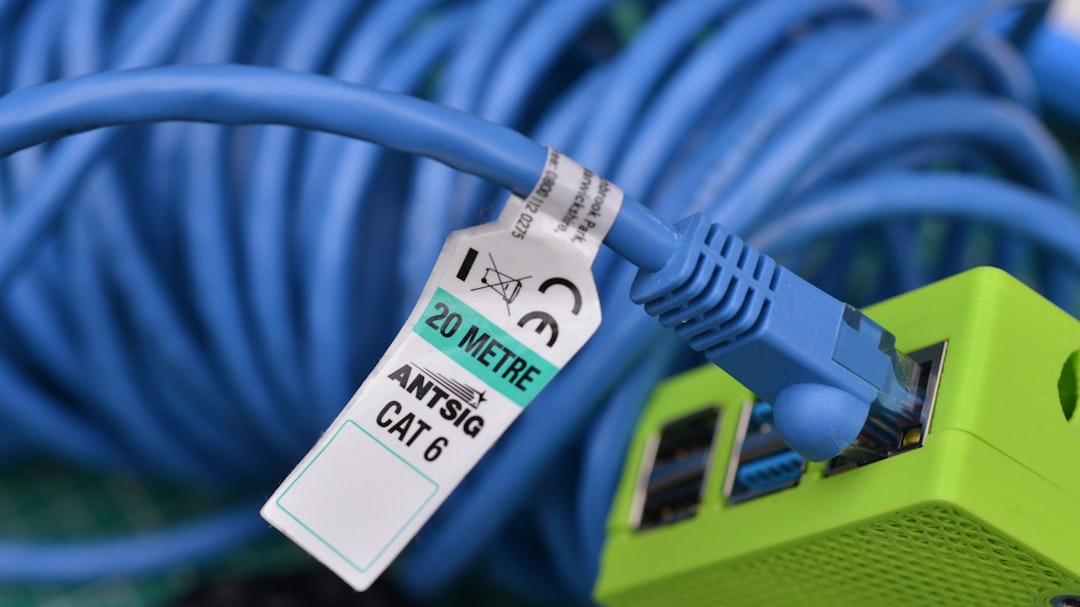
Photo by Gavin Allanwood on Unsplash
Automated updates fix this, but they come with their own risks. A bad kernel update can make your server unbootable. A Docker image update can introduce breaking changes. Blindly auto-updating everything is just as dangerous as never updating.

This guide covers a practical update strategy: auto-update what's safe, notify on what's risky, and have a rollback plan for everything.
The Strategy: What to Auto-Update and What Not To
Before configuring anything, decide what gets auto-updated and what gets manual review.
Safe to auto-update:
- Security patches for the base OS
- Minor version bumps for stable packages
- Docker images tagged with
latestfor simple, stateless services (Pi-hole, Uptime Kuma, Homepage) - Container images with explicit major version pins (
traefik:v3,redis:7)
Update automatically but review if something breaks:
- Kernel updates (with automatic reboot scheduling)
- Docker images for services with databases (Nextcloud, Gitea, Immich)
Never auto-update:
- Hypervisors (Proxmox, ESXi) — update manually during maintenance windows
- Database engines (PostgreSQL, MariaDB major versions) — require migration steps
- Services where the update process requires user action (Nextcloud major versions need occ upgrade)
- Anything where downtime causes data loss (running VMs on a hypervisor that reboots unexpectedly)
Unattended Upgrades (Debian/Ubuntu)
The unattended-upgrades package handles automatic security updates on Debian-based systems. Most Ubuntu Server installations have it installed by default, but it's often not configured optimally.
Install and Enable
sudo apt install unattended-upgrades apt-listchanges
sudo dpkg-reconfigure -plow unattended-upgrades
Select "Yes" when asked to enable automatic updates.
Configure What Gets Updated
Edit /etc/apt/apt.conf.d/50unattended-upgrades:
Unattended-Upgrade::Allowed-Origins {
    "${distro_id}:${distro_codename}";
    "${distro_id}:${distro_codename}-security";
    "${distro_id}ESMApps:${distro_codename}-apps-security";
    "${distro_id}ESM:${distro_codename}-infra-security";
    // Uncomment to also auto-update regular (non-security) packages:
    // "${distro_id}:${distro_codename}-updates";
};
By default, only security updates are applied. This is the right starting point. Adding -updates includes regular package updates, which are generally safe but occasionally break things.
Configure Automatic Reboots
Some updates (especially kernel updates) require a reboot. You can configure unattended-upgrades to reboot automatically at a specific time:
// Automatically reboot if required
Unattended-Upgrade::Automatic-Reboot "true";

// Reboot at 4 AM, not immediately
Unattended-Upgrade::Automatic-Reboot-Time "04:00";

// Don't reboot if users are logged in
Unattended-Upgrade::Automatic-Reboot-WithUsers "false";
For a homelab server that runs 24/7 services, automatic reboots at 4 AM are usually fine. But if you run VMs on bare metal, think carefully. A surprise reboot kills all running VMs. In that case, disable automatic reboots and reboot manually during maintenance windows:
Unattended-Upgrade::Automatic-Reboot "false";
Email Notifications
Get notified when updates are applied:
Unattended-Upgrade::Mail "your-email@example.com";
Unattended-Upgrade::MailReport "on-change";
You'll need a working MTA (like msmtp or postfix) configured on the server for email delivery.
Configure Update Frequency
Edit /etc/apt/apt.conf.d/20auto-upgrades:
APT::Periodic::Update-Package-Lists "1";
APT::Periodic::Unattended-Upgrade "1";
APT::Periodic::Download-Upgradeable-Packages "1";
APT::Periodic::AutocleanInterval "7";
These values are in days. The config above checks for updates daily, applies them daily, and cleans old packages weekly.
Verify It's Working
# Dry run — shows what would be updated
sudo unattended-upgrades --dry-run --debug

# Check the log
cat /var/log/unattended-upgrades/unattended-upgrades.log

# See the last update run
systemctl status apt-daily-upgrade.timer
dnf-automatic (Fedora/RHEL/AlmaLinux)
Fedora and RHEL-family distributions use dnf-automatic (or dnf5-plugin-automatic on Fedora 43+) for unattended updates.
Install and Configure
# Fedora 43+
sudo dnf install dnf5-plugin-automatic

# Fedora 40-42 / RHEL 9 / AlmaLinux 9
sudo dnf install dnf-automatic
Edit /etc/dnf/automatic.conf:
[commands]
# What to do: download and apply
apply_updates = yes

# Only security updates (recommended)
# For all updates, set upgrade_type = default
upgrade_type = security

# Reboot behavior
reboot = when-needed
reboot_command = "shutdown -r +5 'Applying updates, rebooting in 5 minutes'"

[emitters]
# How to notify
emit_via = email,stdio

[email]
email_from = root@homelab.local
email_to = your-email@example.com
email_host = localhost
Enable the Timer
# Enable the timer (runs daily)
sudo systemctl enable --now dnf-automatic.timer

# Verify the timer is active
systemctl status dnf-automatic.timer
systemctl list-timers | grep dnf
Security-Only Updates on RHEL/AlmaLinux
RHEL-family distributions have excellent security metadata, making security-only updates reliable:
# See available security updates
sudo dnf updateinfo list security

# Apply only security updates manually
sudo dnf update --security

# dnf-automatic handles this when upgrade_type = security
Checking Update History
# See what was updated and when
sudo dnf history
sudo dnf history info last

# Check the dnf-automatic log
journalctl -u dnf-automatic.service --since today
Want more linux guides? Get guides like this in your inbox — HomeLab Starter delivers one free deep-dive every week.
Watchtower: Auto-Updating Docker Containers
Watchtower monitors your running Docker containers and automatically updates them when new images are available. It pulls the latest image, stops the container, and recreates it with the same configuration.
Basic Setup
# ~/docker/watchtower/docker-compose.yml
services:
  watchtower:
    image: containrrr/watchtower
    container_name: watchtower
    restart: unless-stopped
    volumes:
      - /var/run/docker.sock:/var/run/docker.sock
    environment:
      WATCHTOWER_CLEANUP: "true"
      WATCHTOWER_SCHEDULE: "0 0 4 * * *"  # 4 AM daily
      WATCHTOWER_TIMEOUT: 30s
This checks for updates to ALL running containers at 4 AM daily and cleans up old images.
Selective Updates with Labels
You probably don't want to auto-update everything. Use labels to control which containers Watchtower manages:
# docker-compose.yml for watchtower
services:
  watchtower:
    image: containrrr/watchtower
    container_name: watchtower
    restart: unless-stopped
    volumes:
      - /var/run/docker.sock:/var/run/docker.sock
    environment:
      WATCHTOWER_CLEANUP: "true"
      WATCHTOWER_SCHEDULE: "0 0 4 * * *"
      WATCHTOWER_LABEL_ENABLE: "true"  # Only update labeled containers
    command: --label-enable
Then label the containers you want auto-updated:
# In each service's docker-compose.yml
services:
  pihole:
    image: pihole/pihole:latest
    labels:
      - "com.centurylinklabs.watchtower.enable=true"

  nextcloud:
    image: nextcloud:28  # Pinned — don't auto-update major versions
    # No watchtower label = not auto-updated
Notifications
Watchtower can notify you when it updates containers:
environment:
  WATCHTOWER_NOTIFICATIONS: "email"
  WATCHTOWER_NOTIFICATION_EMAIL_FROM: "watchtower@homelab.local"
  WATCHTOWER_NOTIFICATION_EMAIL_TO: "your-email@example.com"
  WATCHTOWER_NOTIFICATION_EMAIL_SERVER: "smtp.example.com"
  WATCHTOWER_NOTIFICATION_EMAIL_SERVER_PORT: "587"
  WATCHTOWER_NOTIFICATION_EMAIL_SERVER_USER: "your-user"
  WATCHTOWER_NOTIFICATION_EMAIL_SERVER_PASSWORD: "your-password"
Other notification options include Slack, Discord, Telegram, Gotify, and generic webhooks:
environment:
  WATCHTOWER_NOTIFICATIONS: "shoutrrr"
  WATCHTOWER_NOTIFICATION_URL: "discord://token@webhookid"
Monitor-Only Mode
If you want to know about available updates without applying them:
environment:
  WATCHTOWER_MONITOR_ONLY: "true"
  WATCHTOWER_NOTIFICATIONS: "email"
This sends you a notification when updates are available, but doesn't apply them. You can then update manually at your convenience.
Renovate and Dependabot for Docker Compose Files
Watchtower updates running containers, but it doesn't update your docker-compose.yml files. If you pin image versions (which you should for critical services), the compose file still references the old version.
Renovate and Dependabot solve this by scanning your compose files, detecting outdated image versions, and creating pull requests to update them.
Renovate with a Git Repository
If your Docker Compose files are in a Git repository (they should be):
Create renovate.json in the repo root:
{
  "$schema": "https://docs.renovatebot.com/renovate-schema.json",
  "extends": ["config:base"],
  "docker-compose": {
    "enabled": true,
    "fileMatch": ["(^|/)docker-compose\\.ya?ml$"]
  },
  "packageRules": [
    {
      "matchDatasources": ["docker"],
      "matchUpdateTypes": ["minor", "patch"],
      "automerge": true
    },
    {
      "matchDatasources": ["docker"],
      "matchUpdateTypes": ["major"],
      "automerge": false,
      "labels": ["major-update"]
    }
  ]
}
This auto-merges minor and patch version bumps but requires manual review for major version changes.
GitHub Dependabot
If your compose files are on GitHub, add .github/dependabot.yml:
version: 2
updates:
  - package-ecosystem: "docker-compose"
    directory: "/"
    schedule:
      interval: "weekly"
    reviewers:
      - "your-username"
Dependabot will create PRs for outdated Docker images in your compose files.
Reboot Policies
Updates often require reboots, especially kernel updates. Having a clear reboot policy prevents both "I never reboot and I'm running a 6-month-old kernel" and "my server rebooted during a backup and corrupted my data."
For Standalone Docker Hosts
Auto-reboot is generally safe. Docker containers restart automatically after a reboot (if configured with restart: unless-stopped or restart: always).
# Check if a reboot is needed (Debian/Ubuntu)
[ -f /var/run/reboot-required ] && echo "Reboot needed"

# Check if a reboot is needed (Fedora/RHEL)
needs-restarting -r
Schedule reboots during low-usage hours:
# Cron job to reboot at 4 AM on Sundays if needed (Debian/Ubuntu)
echo '0 4 * * 0 root [ -f /var/run/reboot-required ] && /sbin/shutdown -r now' | sudo tee /etc/cron.d/auto-reboot
For Proxmox/Virtualization Hosts
Do not auto-reboot virtualization hosts. A reboot kills all running VMs and containers. Instead:
- Get notified when a reboot is needed
- Schedule a maintenance window
- Gracefully shut down VMs
- Reboot the host
- Verify VMs come back up
# Script to check and notify (add to cron)
#!/bin/bash
if [ -f /var/run/reboot-required ]; then
    echo "Proxmox host $(hostname) needs a reboot for kernel update" | \
    mail -s "Reboot required: $(hostname)" your-email@example.com
fi
For High-Availability Clusters
If you run a Proxmox HA cluster, you can reboot nodes one at a time. VMs migrate to other nodes automatically:
- Put the node in maintenance mode (migrates VMs away)
- Update and reboot
- Bring the node back online
- Repeat for the next node
needrestart: Handling Service Restarts
Some updates don't require a full reboot — just a service restart. The needrestart package detects which services need restarting after library updates:
# Install
sudo apt install needrestart

# Check what needs restarting
sudo needrestart

# Auto-restart services (add to unattended-upgrades config)
# In /etc/needrestart/needrestart.conf:
# $nrconf{restart} = 'a';  # Automatically restart services
This is particularly useful for OpenSSL and glibc updates, which affect nearly every running service but don't require a reboot.
A Complete Homelab Update Strategy
Here's a concrete strategy that balances security with stability:
Daily (Automated)
- OS security patches: unattended-upgrades or dnf-automatic
- Docker container updates: Watchtower (label-enabled, simple services only)
- Notifications: Email/Discord alert on all automated changes
Weekly (Automated with Review)
- Renovate/Dependabot PRs: Review and merge compose file updates
- Check reboot status: Auto-reboot Docker hosts, notify for hypervisors
Monthly (Manual)
- Major version upgrades: Nextcloud major versions, database upgrades
- Hypervisor updates: Proxmox/ESXi during scheduled maintenance
- Firmware updates: BIOS, NIC firmware, disk firmware
- Review Watchtower logs: Check for failed updates or repeated restarts
Before Any Manual Update
# Snapshot if on Proxmox/ZFS
zfs snapshot rpool/data@pre-update-$(date +%Y%m%d)

# Or backup the VM/container
vzdump <VMID> --storage local --mode snapshot

# For Docker, back up volumes
docker compose stop
tar czf backup-$(date +%Y%m%d).tar.gz ./data ./config
docker compose up -d
When NOT to Auto-Update
There are situations where automatic updates cause more problems than they solve:
Production services with SLAs: If your homelab runs services other people depend on (Nextcloud for family, Jellyfin for friends), a bad auto-update at 4 AM means you wake up to complaints. Pin versions and update manually.
Services with complex upgrade procedures: Nextcloud major versions require running occ upgrade. PostgreSQL major versions require pg_upgrade. These can't be automated safely with Watchtower.
When you're going on vacation: Disable auto-updates before extended absences. If an update breaks something while you're gone, you can't fix it.
# Temporarily disable unattended-upgrades
sudo systemctl stop unattended-upgrades
sudo systemctl disable unattended-upgrades

# Re-enable when you're back
sudo systemctl enable --now unattended-upgrades
Bleeding-edge distributions: Fedora, Arch, and other rolling releases get updates that occasionally break things. Auto-updating Arch is a recipe for returning to a broken system. Use these distros in your homelab if you enjoy the learning, but update manually.
The goal isn't to automate everything. It's to automate the boring, safe stuff (security patches, minor updates) so you can focus your limited time on the updates that actually need human attention. A homelab that's 95% auto-updated with the remaining 5% handled during monthly maintenance is dramatically more secure than one where you "get around to it eventually."