Ubuntu Server Initial Setup: Security Hardening for Home Labs
You've installed Ubuntu Server, it booted successfully, and you can log in. Now what? A default Ubuntu Server installation is functional but not particularly secure. It accepts password-based SSH logins from anywhere, has no firewall rules, and doesn't automatically install security updates. For a home lab server that's going to run 24/7 on your network, spending 30 minutes on basic hardening makes a real difference.
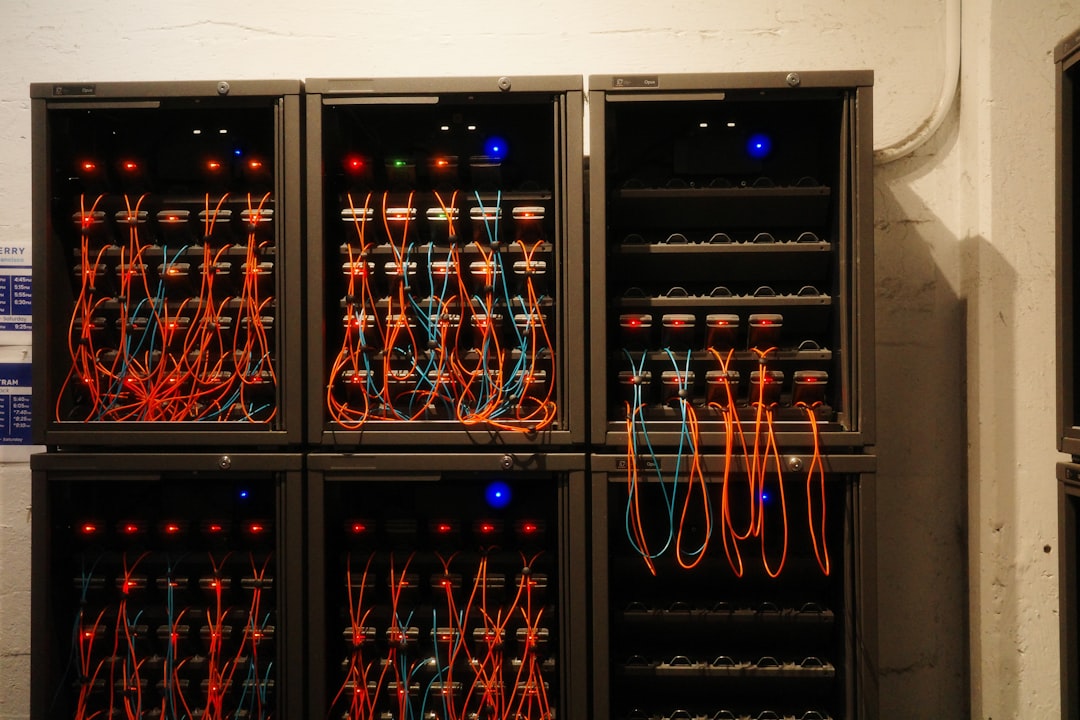
Photo by Fabio Sasso on Unsplash
This guide walks through the essential post-installation security steps for Ubuntu Server 24.04 LTS. Everything here applies equally well to 22.04 or Debian 12 with minor differences.

Step 1: Update Everything
Before doing anything else, make sure the system is fully up to date.
sudo apt update && sudo apt upgrade -y

# If a kernel was updated, reboot
sudo reboot
This pulls in any security patches released since the ISO was built. On a fresh install, there are usually several.
Step 2: Create a Non-Root User (If Needed)
If you only created root during installation (common with minimal installs), create a regular user immediately. Running everything as root is a bad habit that will bite you eventually.
# Create a user and add to sudo group
adduser yourname
usermod -aG sudo yourname

# Test it works
su - yourname
sudo whoami  # Should print "root"
The Ubuntu Server installer usually creates a regular user for you, so this step may already be done. Either way, never SSH in as root — always use your regular user and sudo when needed.
Step 3: Set Up SSH Key Authentication
Password authentication over SSH is the single biggest attack vector for internet-facing servers. Bots constantly scan for SSH servers and try common username/password combinations. SSH keys eliminate this risk entirely.
Generate a Key Pair (On Your Local Machine)
# On your laptop/desktop — NOT on the server
ssh-keygen -t ed25519 -C "yourname@your-laptop"

# When prompted for a file, press Enter for the default (~/.ssh/id_ed25519)
# When prompted for a passphrase, use a strong one (or leave blank for convenience)
Ed25519 is the modern standard — it's faster and more secure than RSA with much shorter keys. If you need RSA compatibility for older systems, use ssh-keygen -t rsa -b 4096.
Copy the Key to Your Server
# From your local machine
ssh-copy-id yourname@192.168.1.100

# Or manually if ssh-copy-id isn't available:
cat ~/.ssh/id_ed25519.pub | ssh yourname@192.168.1.100 "mkdir -p ~/.ssh && cat >> ~/.ssh/authorized_keys"
Test that key-based login works before proceeding:
ssh yourname@192.168.1.100
# Should log in without asking for a password
Disable Password Authentication
Once key-based login is confirmed working, disable password authentication entirely:
sudo nano /etc/ssh/sshd_config
Find and change these lines (or add them if they don't exist):
PasswordAuthentication no
PubkeyAuthentication yes
PermitRootLogin no
PermitEmptyPasswords no
MaxAuthTries 3
Important settings explained:
PasswordAuthentication no— No more password login over SSH. Keys only.PubkeyAuthentication yes— Allow SSH key authentication (should already be the default).PermitRootLogin no— Block root from logging in via SSH entirely. Use your regular user andsudo.MaxAuthTries 3— Disconnect after 3 failed attempts per connection.
Apply the changes:
sudo systemctl restart sshd
Before closing your current SSH session, open a new terminal and verify you can still log in. If key auth is misconfigured and you've disabled passwords, you'll be locked out. Always test with a second connection first.
Optional: Change the SSH Port
Changing SSH from port 22 to something else (like 2222) eliminates 99% of automated scanning noise. It's security through obscurity — it doesn't protect against a determined attacker, but it reduces log spam dramatically.
# In /etc/ssh/sshd_config
Port 2222

# Restart SSH
sudo systemctl restart sshd

# Connect with the new port
ssh -p 2222 yourname@192.168.1.100
If you change the port, remember to update your firewall rules (next section) and your SSH config on your local machine:
# ~/.ssh/config (on your local machine)
Host homelab
    HostName 192.168.1.100
    User yourname
    Port 2222
Want more linux guides? Get guides like this in your inbox — HomeLab Starter delivers one free deep-dive every week.
Step 4: Configure the Firewall (UFW)
Ubuntu includes UFW (Uncomplicated Firewall), a friendly wrapper around iptables/nftables. By default, it's installed but not enabled.
# Allow SSH (do this BEFORE enabling the firewall!)
sudo ufw allow ssh
# Or if you changed the port:
sudo ufw allow 2222/tcp

# Enable the firewall
sudo ufw enable

# Check status
sudo ufw status verbose
Now add rules for the services you'll actually run:
# Allow HTTP and HTTPS (for web services)
sudo ufw allow 80/tcp
sudo ufw allow 443/tcp

# Allow specific services by port
sudo ufw allow 8080/tcp    # Portainer, etc.
sudo ufw allow 53          # DNS (Pi-hole) — both TCP and UDP

# Allow from a specific subnet only (more restrictive)
sudo ufw allow from 192.168.1.0/24 to any port 9090  # Prometheus from LAN only

# Deny everything else (default policy)
sudo ufw default deny incoming
sudo ufw default allow outgoing

# View all rules
sudo ufw status numbered

# Delete a rule by number
sudo ufw delete 3
The principle: deny everything by default, then explicitly allow only the ports you need. For a home lab server, this typically means SSH, HTTP/HTTPS, and whatever specific ports your services use.
Step 5: Install and Configure Fail2ban
Fail2ban monitors log files for repeated failed authentication attempts and temporarily bans the offending IP addresses. Even with SSH key authentication, it's worth running — it catches brute-force attempts against any service with authentication.
sudo apt install fail2ban -y
Create a local configuration file (don't edit the default jail.conf — it gets overwritten on updates):
sudo nano /etc/fail2ban/jail.local
[DEFAULT]
# Ban for 1 hour after 3 failures within 10 minutes
bantime = 3600
findtime = 600
maxretry = 3
# Use nftables as the backend (modern Ubuntu)
banaction = nftables-multiport

[sshd]
enabled = true
port = ssh
# If you changed the SSH port:
# port = 2222

# Optional: protect other services
[nginx-http-auth]
enabled = true

[apache-auth]
enabled = true
Start and enable fail2ban:
sudo systemctl enable --now fail2ban

# Check status
sudo fail2ban-client status
sudo fail2ban-client status sshd

# View banned IPs
sudo fail2ban-client status sshd

# Manually unban an IP
sudo fail2ban-client set sshd unbanip 192.168.1.50
Step 6: Enable Unattended Upgrades
Security vulnerabilities in installed packages are discovered regularly. Unattended upgrades automatically install security patches without manual intervention. For a home lab server, this is the right trade-off — the small risk of a breaking update is far outweighed by the risk of an unpatched vulnerability.
sudo apt install unattended-upgrades -y
sudo dpkg-reconfigure -plow unattended-upgrades
# Select "Yes" when prompted
Verify the configuration:
sudo nano /etc/apt/apt.conf.d/50unattended-upgrades
The important lines:
// Security updates — should already be enabled
Unattended-Upgrade::Allowed-Origins {
    "${distro_id}:${distro_codename}-security";
    "${distro_id}ESMApps:${distro_codename}-apps-security";
};

// Auto-reboot if needed (optional — enable for truly hands-off operation)
Unattended-Upgrade::Automatic-Reboot "true";
Unattended-Upgrade::Automatic-Reboot-Time "04:00";

// Email notifications (optional)
Unattended-Upgrade::Mail "your-email@example.com";
Unattended-Upgrade::MailReport "on-change";
The auto-reboot setting is a personal choice. If your services can handle a brief reboot at 4 AM, enable it. If you run critical services that can't tolerate downtime, leave it off and reboot manually when you see the /var/run/reboot-required file.
# Check if a reboot is pending
cat /var/run/reboot-required 2>/dev/null || echo "No reboot required"

# Test unattended upgrades
sudo unattended-upgrades --dry-run --debug
Step 7: Harden System Settings
A few sysctl tweaks improve security without affecting normal operation:
sudo nano /etc/sysctl.d/99-hardening.conf
# Prevent IP spoofing
net.ipv4.conf.all.rp_filter = 1
net.ipv4.conf.default.rp_filter = 1

# Ignore ICMP redirects (prevents MITM attacks)
net.ipv4.conf.all.accept_redirects = 0
net.ipv4.conf.default.accept_redirects = 0
net.ipv6.conf.all.accept_redirects = 0
net.ipv6.conf.default.accept_redirects = 0

# Don't send ICMP redirects (we're not a router... usually)
net.ipv4.conf.all.send_redirects = 0
net.ipv4.conf.default.send_redirects = 0

# Ignore broadcast pings
net.ipv4.icmp_echo_ignore_broadcasts = 1

# Log suspicious packets
net.ipv4.conf.all.log_martians = 1

# Disable IPv6 if you don't use it (reduces attack surface)
# net.ipv6.conf.all.disable_ipv6 = 1
# net.ipv6.conf.default.disable_ipv6 = 1
Apply the settings:
sudo sysctl --system
Step 8: Set Up Basic Monitoring
You want to know when something goes wrong without having to log in and check manually.
# Install useful monitoring tools
sudo apt install -y htop iotop ncdu tmux

# htop — interactive process viewer (better than top)
htop

# iotop — see which processes are doing disk I/O
sudo iotop

# ncdu — find what's eating disk space
ncdu /

# Check disk space
df -h

# Check memory usage
free -h

# Check for listening ports
sudo ss -tlnp
For persistent monitoring, set up simple alerting. The cheapest option is a systemd timer that checks disk space and sends a warning:
# Create a simple disk space check script
sudo nano /usr/local/bin/check-disk.sh
#!/bin/bash
THRESHOLD=85
USAGE=$(df / | tail -1 | awk '{print $5}' | tr -d '%')

if [ "$USAGE" -gt "$THRESHOLD" ]; then
    echo "WARNING: Disk usage is ${USAGE}% on $(hostname)" | \
        mail -s "Disk Alert: $(hostname)" your-email@example.com
fi
sudo chmod +x /usr/local/bin/check-disk.sh
Step 9: Disable Unnecessary Services
A minimal Ubuntu Server installation doesn't have much running, but check anyway:
# List enabled services
systemctl list-unit-files --state=enabled

# List listening network services
sudo ss -tlnp

# Disable anything you don't need. Common candidates:
sudo systemctl disable --now snapd       # If you don't use snaps
sudo systemctl disable --now multipathd  # Unless you have SAN storage
The fewer services running, the smaller the attack surface and the lower the resource usage.
Security Checklist
After completing this guide, verify your setup:
# 1. SSH key auth works
ssh yourname@192.168.1.100

# 2. Password auth is disabled
ssh -o PubkeyAuthentication=no yourname@192.168.1.100
# Should fail with "Permission denied (publickey)"

# 3. Root login is blocked
ssh root@192.168.1.100
# Should fail

# 4. Firewall is active
sudo ufw status

# 5. Fail2ban is running
sudo fail2ban-client status

# 6. Unattended upgrades are configured
sudo unattended-upgrades --dry-run

# 7. System is up to date
sudo apt update && apt list --upgradable
These steps take about 30 minutes on a fresh install and dramatically improve your security posture. None of this makes your server impenetrable — nothing does — but it closes the most common attack vectors and gives you a solid foundation. As your home lab grows, you can add more layers: VPN access, centralized logging, IDS/IPS systems, and network segmentation. But this baseline will serve you well for a long time.