BorgBackup for Home Lab Data Protection
BorgBackup (borg) is a deduplicating backup program with encryption and compression. It's been around since 2015, it's written in Python and C, and it's the tool a lot of Linux sysadmins reach for when they need reliable, space-efficient backups. If you run a homelab, borg deserves your attention.
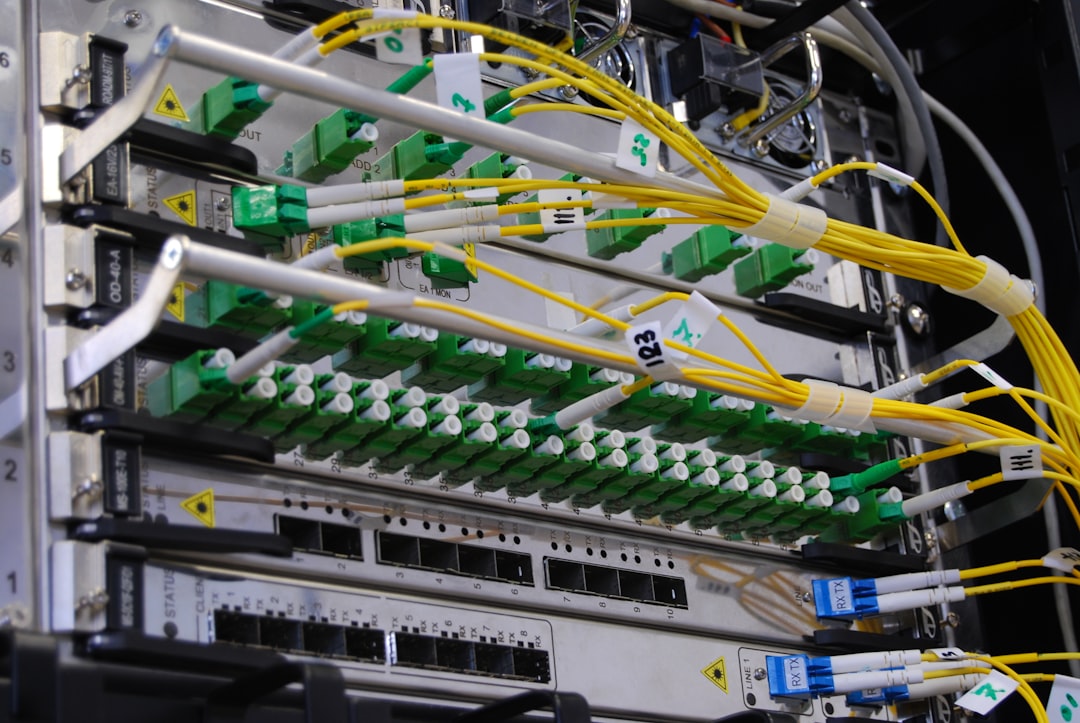
Photo by Kirill Sh on Unsplash
What makes borg compelling for homelabs specifically is the combination of deduplication and compression. When you're backing up VMs, containers, configuration files, and databases across multiple machines, there's a lot of duplicate data. Borg identifies identical chunks across all your backups and stores each chunk exactly once. A homelab with 500 GB of data across five machines might only use 200 GB of backup storage because of shared operating system files, common packages, and repeated configuration patterns.

This guide covers everything from initial installation through fully automated, monitored backups with borgmatic.
Installing BorgBackup
Borg is available in most Linux distribution repositories, but the packaged versions are often outdated. For the latest features and bug fixes, install from the standalone binary:
# Option 1: Package manager (easy, but may be outdated)
# Ubuntu/Debian
sudo apt install borgbackup

# Fedora
sudo dnf install borgbackup

# Arch
sudo pacman -S borg

# Option 2: Standalone binary (recommended for latest version)
wget https://github.com/borgbackup/borg/releases/download/1.4.0/borg-linux-glibc236
sudo mv borg-linux-glibc236 /usr/local/bin/borg
sudo chmod +x /usr/local/bin/borg

# Verify
borg --version
Install borg on both the machine you're backing up (the client) and the machine storing the backups (the server/repo host), if they're different machines.
Creating a Repository
A borg repository is the directory where your backup data lives. You initialize it once, then create archives (snapshots) within it.
Local Repository
For backing up to a locally mounted drive or NAS share:
# Initialize with authenticated encryption (recommended)
borg init --encryption=repokey /mnt/nas/backups/borg-homeserver

# Or with key stored in the repo (easier backup/restore, slightly less secure)
borg init --encryption=repokey-blake2 /mnt/nas/backups/borg-homeserver
Borg will ask for a passphrase. This encrypts the encryption key itself. Choose something strong and store it safely — in your password manager, and written down in a physical location separate from your backup media.
Remote Repository via SSH
For backing up to another machine on your network:
# Initialize a repo on a remote server
borg init --encryption=repokey borg@192.168.1.50:/backups/homeserver
Set up SSH key authentication first so borg can connect without a password prompt:
# Generate a key pair (if you don't have one)
ssh-keygen -t ed25519 -f ~/.ssh/borg_backup -N ""

# Copy the public key to the backup server
ssh-copy-id -i ~/.ssh/borg_backup.pub borg@192.168.1.50
On the backup server, create a restricted user for borg:
# On the backup server
sudo useradd -m -s /bin/bash borg
sudo mkdir -p /backups
sudo chown borg:borg /backups
For extra security, restrict the SSH key to only allow borg commands. In /home/borg/.ssh/authorized_keys:
command="borg serve --restrict-to-path /backups",restrict ssh-ed25519 AAAA... client-hostname
This prevents the backup client from doing anything other than borg operations on the specified path, even if the SSH key is compromised.
Understanding Encryption Options
Borg offers several encryption modes:
| Mode | Description | Use When |
|---|---|---|
repokey |
Key stored in repo, AES-256-CTR + HMAC-SHA256 | Default choice, good security |
repokey-blake2 |
Key stored in repo, AES-256-CTR + BLAKE2b | Faster on modern CPUs |
keyfile |
Key stored locally only (not in repo) | Maximum security, but lose the key and you lose everything |
none |
No encryption | Only for trusted local storage where encryption is handled elsewhere |
For most homelabs, repokey-blake2 is the right choice. The key is stored in the repository (so you can restore from any machine with the passphrase), and BLAKE2b is faster than SHA256 on modern hardware.
Backing Up the Encryption Key
This is critical. Export and save your key somewhere other than the repository itself:
borg key export /mnt/nas/backups/borg-homeserver ~/borg-key-backup.txt
Store this file in your password manager, print a physical copy, or keep it on a separate encrypted USB drive. Without both the passphrase and the key, your backups are unrecoverable.
Want more backup guides? Get guides like this in your inbox — HomeLab Starter delivers one free deep-dive every week.
Running Backups
Your First Backup
borg create \
  /mnt/nas/backups/borg-homeserver::'{hostname}-{now:%Y-%m-%d_%H:%M}' \
  /home \
  /etc \
  /opt \
  /var/lib/docker/volumes \
  --exclude '*.cache' \
  --exclude '*/.cache/*' \
  --exclude '*/node_modules/*' \
  --exclude '*/__pycache__/*' \
  --exclude '*.tmp' \
  --exclude '/home/*/.local/share/Trash' \
  --compression auto,zstd,6 \
  --stats
Breaking this down:
'{hostname}-{now:%Y-%m-%d_%H:%M}'— Names the archive with hostname and timestamp. The quotes prevent shell expansion of the curly braces.--exclude— Patterns for files to skip. Caches, temp files, and build artifacts don't need backing up.--compression auto,zstd,6— Uses zstd compression at level 6. Theautoprefix tells borg to skip compression for already-compressed files (JPEGs, videos, zip archives).--stats— Prints a summary when done.
The first backup transfers everything. The output will show something like:
Archive name: homeserver-2026-02-09_02:00
Archive fingerprint: a1b2c3d4...
Time (start): Sun, 2026-02-09 02:00:15
Time (end):   Sun, 2026-02-09 02:12:43

Duration: 12 minutes 28 seconds
Number of files: 284,531

                       Original size      Compressed size    Deduplicated size
This archive:               48.32 GB             31.17 GB             31.17 GB
All archives:               48.32 GB             31.17 GB             31.17 GB
The second backup is dramatically faster because deduplication kicks in. Only changed chunks are stored:
This archive:               48.45 GB             31.28 GB              0.24 GB
All archives:               96.77 GB             62.45 GB             31.41 GB
That second backup only stored 240 MB of new data despite the archive being 48 GB. This is deduplication in action.
Compression Deep Dive
Borg supports several compression algorithms:
| Algorithm | Speed | Ratio | Best For |
|---|---|---|---|
none |
Fastest | 1:1 | Already-compressed data |
lz4 |
Very fast | Low | Fast backups when CPU is limited |
zstd,1-22 |
Fast to slow | Medium to high | General purpose (level 3-6 is the sweet spot) |
zlib,1-9 |
Slow | Medium | Legacy compatibility |
lzma,1-9 |
Very slow | Highest | Archival where restore speed doesn't matter |
Recommended: auto,zstd,6. The auto prefix detects already-compressed files (images, videos, compressed archives) and skips compression for them, saving CPU time without sacrificing ratio. Zstd at level 6 gives a good balance of speed and compression.
For a homelab with mostly text configs and databases:
--compression auto,zstd,9 # Higher compression, slower
For a homelab with lots of media files:
--compression auto,lz4 # Skip most compression, fast
Deduplication: How It Works
Borg splits files into variable-size chunks (typically 1-8 MB), hashes each chunk, and stores only unique chunks. This deduplication happens across all archives in a repository, not just within a single backup.
This means:
- Daily backups of the same machine are very space-efficient. Only changed file chunks are stored.
- Multiple machines with similar software benefit too. If server1 and server2 both run Ubuntu with the same packages, the shared OS files are stored once.
- Moving or renaming files doesn't cause re-storage. Borg tracks chunks, not filenames.
The deduplication ratio depends on your data. Text-heavy homelabs (configs, code, documents) see 5-10x ratios over time. Media-heavy homelabs (photos, videos) see lower ratios because each file is unique.
Automating with Borgmatic
Running borg commands manually gets tedious. Borgmatic is a wrapper that handles the full backup lifecycle — create, prune, check, and notify — from a single YAML config file.
Install Borgmatic
# Via pip
pip install borgmatic

# Or via package manager
sudo apt install borgmatic  # Ubuntu/Debian
sudo dnf install borgmatic  # Fedora
Configure Borgmatic
Generate a config file:
borgmatic config generate
Edit /etc/borgmatic/config.yaml:
# Where to store backups
repositories:
  - path: /mnt/nas/backups/borg-homeserver
    label: nas
  - path: ssh://borg@192.168.1.50/./backups/homeserver
    label: offsite

# What to back up
source_directories:
  - /home
  - /etc
  - /opt
  - /var/lib/docker/volumes
  - /root

# What to skip
exclude_patterns:
  - '*.cache'
  - '*/.cache/*'
  - '*/node_modules/*'
  - '*/__pycache__/*'
  - '*.tmp'
  - '*/lost+found'
  - '/home/*/.local/share/Trash'

# Retention policy
keep_daily: 7
keep_weekly: 4
keep_monthly: 6
keep_yearly: 2

# Compression
compression: auto,zstd,6

# Encryption passphrase (or use BORG_PASSPHRASE env variable)
encryption_passphrase: "your-secure-passphrase"

# Consistency checks
checks:
  - name: repository
    frequency: 2 weeks
  - name: archives
    frequency: 1 month

# Hooks — run commands before/after backup
before_backup:
  - echo "Starting backup at $(date)"
  # Dump databases before backing up
  - pg_dump -U postgres mydb > /opt/backup-staging/mydb.sql

after_backup:
  - echo "Backup finished at $(date)"

on_error:
  - echo "Backup FAILED at $(date)"
Running Borgmatic
# Run a full backup cycle (create + prune + check)
borgmatic

# Just create a backup
borgmatic create --stats

# Just prune old backups
borgmatic prune --stats

# Just run integrity checks
borgmatic check

# List all archives
borgmatic list

# Dry run (show what would happen)
borgmatic create --dry-run
Scheduling with Systemd
Create /etc/systemd/system/borgmatic.service:
[Unit]
Description=Borgmatic Backup
After=network-online.target
Wants=network-online.target
# Prevent simultaneous runs
ConditionACPower=true

[Service]
Type=oneshot
Nice=19
IOSchedulingClass=best-effort
IOSchedulingPriority=7

# Security hardening
LockPersonality=true
MemoryDenyWriteExecute=no
NoNewPrivileges=yes
PrivateTmp=yes
ProtectClock=true
ProtectHostname=true
RestrictRealtime=yes

ExecStart=/usr/bin/borgmatic --verbosity 1 --syslog-verbosity 1
Create /etc/systemd/system/borgmatic.timer:
[Unit]
Description=Run Borgmatic Backup Daily

[Timer]
OnCalendar=*-*-* 03:00:00
RandomizedDelaySec=30min
Persistent=true

[Install]
WantedBy=timers.target
Enable it:
sudo systemctl daemon-reload
sudo systemctl enable --now borgmatic.timer

# Verify the timer is active
systemctl list-timers | grep borgmatic
Pruning: Managing Backup Retention
Without pruning, your backup repository grows forever. Borg's pruning is sophisticated — it keeps archives based on time periods, not just a fixed count.
# Manual pruning
borg prune \
  /mnt/nas/backups/borg-homeserver \
  --keep-daily=7 \
  --keep-weekly=4 \
  --keep-monthly=6 \
  --keep-yearly=2 \
  --stats
This keeps:
- One archive per day for the last 7 days
- One archive per week for the last 4 weeks
- One archive per month for the last 6 months
- One archive per year for the last 2 years
Everything else is pruned. After pruning, run borg compact to reclaim disk space:
borg compact /mnt/nas/backups/borg-homeserver
In borgmatic, pruning and compacting happen automatically as part of the regular run.
A Note on Pruning Safety
Borg never deletes data that any remaining archive references. If an archive from 6 months ago shares chunks with your latest backup, those chunks are safe. Pruning only removes archives (and their exclusively-referenced chunks), never data that other archives depend on.
Monitoring Backups
Backups that fail silently are a false sense of security. Set up monitoring so you know when things go wrong.
Healthcheck Pings
Use a dead man's switch service (Healthchecks.io, Uptime Kuma, or self-hosted ntfy):
# borgmatic config
after_backup:
  - curl -fsS -m 10 https://hc-ping.com/your-uuid-here

on_error:
  - curl -fsS -m 10 https://hc-ping.com/your-uuid-here/fail
The dead man's switch alerts you if the backup doesn't check in on schedule — catching both failures and situations where the timer didn't fire at all.
Prometheus Metrics
Export borg backup stats to Prometheus for dashboard visibility:
#!/bin/bash
# /usr/local/bin/borg-metrics.sh
# Run after borgmatic, writes metrics for node_exporter textfile collector

REPO="/mnt/nas/backups/borg-homeserver"
METRICS_DIR="/var/lib/prometheus/node-exporter"
METRICS_FILE="$METRICS_DIR/borg.prom"

# Get last archive info
LAST_ARCHIVE=$(borg list --last 1 --format '{time}{TAB}{name}' "$REPO" 2>/dev/null)
LAST_TIME=$(echo "$LAST_ARCHIVE" | cut -f1)
LAST_EPOCH=$(date -d "$LAST_TIME" +%s 2>/dev/null || echo 0)

# Get repo info
REPO_INFO=$(borg info "$REPO" --json 2>/dev/null)
TOTAL_SIZE=$(echo "$REPO_INFO" | python3 -c "import sys,json; print(json.load(sys.stdin)['cache']['stats']['total_size'])" 2>/dev/null || echo 0)
TOTAL_CHUNKS=$(echo "$REPO_INFO" | python3 -c "import sys,json; print(json.load(sys.stdin)['cache']['stats']['total_chunks'])" 2>/dev/null || echo 0)
UNIQUE_SIZE=$(echo "$REPO_INFO" | python3 -c "import sys,json; print(json.load(sys.stdin)['cache']['stats']['unique_size'])" 2>/dev/null || echo 0)

cat > "$METRICS_FILE" <<PROM
# HELP borg_last_backup_timestamp_seconds Timestamp of last successful backup
# TYPE borg_last_backup_timestamp_seconds gauge
borg_last_backup_timestamp_seconds{repo="homeserver"} $LAST_EPOCH
# HELP borg_repo_total_size_bytes Total size of all archives before dedup
# TYPE borg_repo_total_size_bytes gauge
borg_repo_total_size_bytes{repo="homeserver"} $TOTAL_SIZE
# HELP borg_repo_unique_size_bytes Deduplicated size on disk
# TYPE borg_repo_unique_size_bytes gauge
borg_repo_unique_size_bytes{repo="homeserver"} $UNIQUE_SIZE
# HELP borg_repo_total_chunks Total number of chunks
# TYPE borg_repo_total_chunks gauge
borg_repo_total_chunks{repo="homeserver"} $TOTAL_CHUNKS
PROM
Add this script to borgmatic's after_backup hook. Then create a Grafana dashboard showing backup age, repo size, and deduplication ratio.
Log Checking
Borgmatic logs to syslog by default. Check for issues:
# Recent borgmatic runs
journalctl -u borgmatic.service --since "24 hours ago"

# Failed runs only
journalctl -u borgmatic.service -p err --since "7 days ago"
Restoring Files
The whole point of backups is restoration. Here's how to get your data back.
List Archives
# List all archives
borg list /mnt/nas/backups/borg-homeserver

# List contents of a specific archive
borg list /mnt/nas/backups/borg-homeserver::homeserver-2026-02-09_03:00

# Search for a file across archives
borg list /mnt/nas/backups/borg-homeserver::homeserver-2026-02-09_03:00 | grep nginx.conf
Extract Specific Files
# Extract a single file to the current directory
cd /tmp
borg extract /mnt/nas/backups/borg-homeserver::homeserver-2026-02-09_03:00 \
  home/user/documents/important.txt

# Extract a directory
borg extract /mnt/nas/backups/borg-homeserver::homeserver-2026-02-09_03:00 \
  etc/nginx/

# Extract to a specific location
cd /tmp/restore
borg extract /mnt/nas/backups/borg-homeserver::homeserver-2026-02-09_03:00
Mount as a Filesystem
This is one of borg's best features. Mount an archive (or all archives) as a read-only FUSE filesystem and browse it like any directory:
mkdir /mnt/borg-mount

# Mount all archives (browse by archive name)
borg mount /mnt/nas/backups/borg-homeserver /mnt/borg-mount

# Mount a specific archive
borg mount /mnt/nas/backups/borg-homeserver::homeserver-2026-02-09_03:00 /mnt/borg-mount

# Browse, copy files, diff against current
ls /mnt/borg-mount/
diff /etc/nginx/nginx.conf /mnt/borg-mount/etc/nginx/nginx.conf

# Unmount when done
borg umount /mnt/borg-mount
This is invaluable when you need to check what a config file looked like three weeks ago, or when you need to recover one file out of a 50 GB backup without extracting the whole thing.
With Borgmatic
# List archives via borgmatic
borgmatic list

# Extract files
borgmatic extract --archive homeserver-2026-02-09_03:00 --path home/user/documents/

# Mount
borgmatic mount --archive homeserver-2026-02-09_03:00 --mount-point /mnt/borg-mount
Remote Backups
For offsite protection, back up to a remote server over SSH:
# borgmatic config with both local and remote repos
repositories:
  - path: /mnt/nas/backups/borg-homeserver
    label: local-nas
  - path: ssh://borg@offsite-server.example.com/./backups/homeserver
    label: offsite
Borgmatic will create archives in both repositories. The remote backup uses SSH, so the data is encrypted in transit, and the borg repository encryption means it's encrypted at rest on the remote server too.
BorgBase: Managed Borg Hosting
If you don't have a remote server, BorgBase offers managed borg repository hosting. They have a free tier (10 GB) and paid plans starting at $2/month for 250 GB. It's borg-specific hosting, so it's optimized for the protocol and supports append-only mode for extra security.
Append-Only Mode
For protection against ransomware or a compromised client, configure the remote repository in append-only mode:
# On the backup server, in authorized_keys:
command="borg serve --restrict-to-path /backups --append-only",restrict ssh-ed25519 AAAA...
In append-only mode, the client can create new archives and add data, but cannot delete archives or prune. A compromised client can't destroy your backup history. Pruning must be done manually on the backup server itself.
Practical Tips
Test restores quarterly. Pick a random archive, extract a few files, verify they're intact. The first time you actually need a restore should not be the first time you've ever tried it.
Back up databases correctly. Don't back up database data directories while the database is running — you'll get corrupt backups. Dump them first:
# In borgmatic before_backup hook:
before_backup:
  - pg_dump -U postgres mydb > /opt/backup-staging/mydb.sql
  - docker exec mariadb mysqldump --all-databases > /opt/backup-staging/mariadb.sql
Watch your repository size. Borg's deduplication is impressive but not magic. Large binary files that change frequently (VM disk images, database files) create poor deduplication ratios. Dump and compress databases instead of backing up raw data directories.
Keep the passphrase accessible but secure. If you're hit by a disaster and need to restore from your offsite backup, you need three things: the borg binary, your repository, and your passphrase. Make sure you can access all three independently.
Use --one-file-system for clean backups. This flag prevents borg from crossing filesystem boundaries, which avoids accidentally backing up mounted network shares, tmpfs, or proc filesystems:
borg create --one-file-system /mnt/nas/backups/borg-homeserver::{now} /
BorgBackup isn't flashy. It doesn't have a web UI or a mobile app. What it has is a decade of reliability, excellent deduplication and compression, strong encryption, and a straightforward command-line interface that does exactly what you tell it to. Pair it with borgmatic for automation and monitoring, and you have a backup system that quietly protects your homelab data without demanding your attention. That's exactly what good backup software should do.