Home Lab SSD Buying Guide: SATA, NVMe, and Everything In Between
SSDs have gotten cheap enough that spinning rust is no longer the default for home lab storage. A 1 TB NVMe drive costs less than dinner for two, and even enterprise-grade drives show up on eBay for pennies on the dollar. But "cheap" doesn't mean "simple" — there's a real difference between a $40 QLC drive that's fine for a boot disk and a $200 enterprise NVMe that'll survive years of database writes.
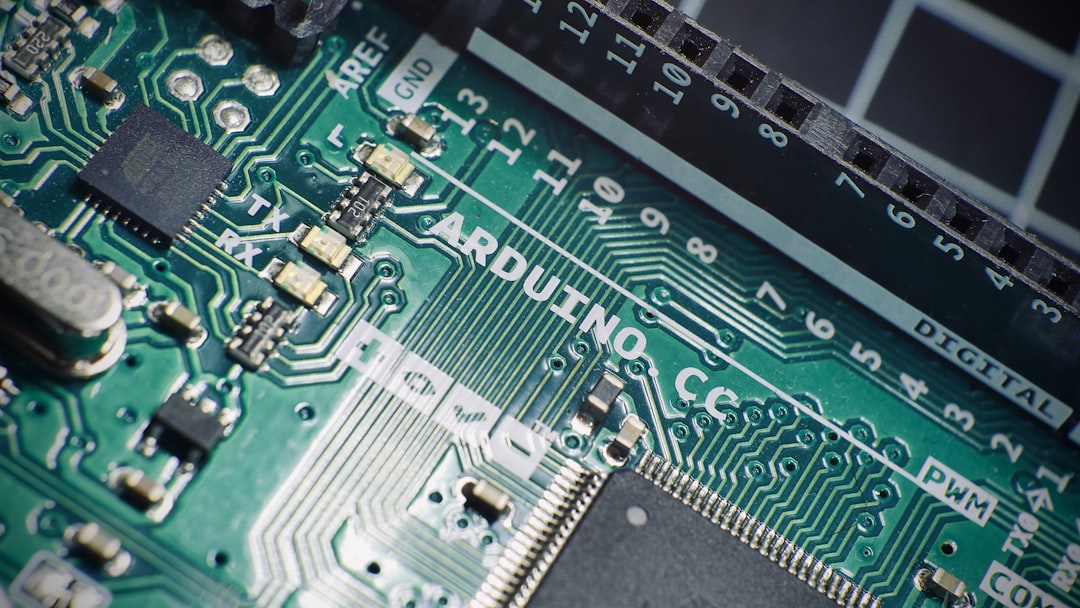
Photo by Félix Girault on Unsplash

This guide cuts through the marketing and spec sheets to help you pick the right SSD for each role in your home lab: boot drives, VM storage, cache tiers, and data storage. We'll cover the technology, the specs that actually matter, and specific recommendations.
SATA vs NVMe: Which Interface?
The two SSD interfaces you'll encounter are SATA and NVMe. They differ in speed, form factor, and price.
SATA SSDs
- Form factor: 2.5-inch (same size as a laptop HDD) with a SATA data cable and power connector
- Interface speed: 6 Gbps (theoretical max ~550 MB/s)
- Typical real-world speed: 500-550 MB/s read, 450-530 MB/s write
- Compatibility: Works in any device with a SATA port — older servers, NAS devices, laptops, desktops
- Price: Slightly cheaper per GB than NVMe at the same capacity
SATA SSDs are "fast enough" for the vast majority of home lab workloads. The 550 MB/s ceiling sounds limiting on paper, but consider: a SATA SSD is still 5-10x faster than an HDD for random I/O, which is what matters most for VMs, databases, and OS boot times.
NVMe SSDs
- Form factor: M.2 2280 (small card that slots directly into the motherboard) or U.2 (2.5-inch with a different connector, common in enterprise)
- Interface speed: PCIe Gen 3 x4 = ~3,500 MB/s, PCIe Gen 4 x4 = ~7,000 MB/s, PCIe Gen 5 x4 = ~14,000 MB/s
- Typical real-world speed: 2,000-7,000 MB/s read depending on generation
- Compatibility: Requires an M.2 slot (or U.2 port) on the motherboard, or a PCIe adapter card
- Price: Comparable to SATA at common capacities (1-2 TB)
NVMe drives are significantly faster than SATA, especially for sequential reads and writes. For VM storage, database servers, or anything with heavy I/O, NVMe makes a noticeable difference. For a boot drive running a few Docker containers, you won't feel the difference over SATA.
Which Should You Buy?
| Use Case | Recommendation | Why |
|---|---|---|
| Boot drive | Either | Both are fast enough. Buy whichever your system supports. |
| VM storage (Proxmox) | NVMe | VMs benefit from NVMe's random I/O performance. |
| ZFS cache (L2ARC/SLOG) | NVMe | Cache devices need low latency. |
| NAS data storage | SATA | NAS enclosures use 2.5/3.5-inch bays, not M.2. |
| TrueNAS boot | SATA | TrueNAS uses a mirrored boot pool — cheap SATA SSDs are ideal. |
| Database server | NVMe | Databases are I/O-intensive. NVMe's IOPS advantage matters. |
If your system has an M.2 slot, use it. NVMe drives are barely more expensive than SATA at the same capacity, and you free up a SATA port for other devices.
Flash Types: MLC, TLC, QLC
The flash memory cells inside an SSD determine its speed, endurance, and price. Each cell stores a certain number of bits:
| Type | Bits Per Cell | Relative Speed | Relative Endurance | Relative Cost |
|---|---|---|---|---|
| SLC | 1 | Fastest | Highest | Very expensive (enterprise only) |
| MLC | 2 | Fast | High | Expensive (enterprise, some consumer) |
| TLC | 3 | Good | Good | Mainstream pricing |
| QLC | 4 | Adequate | Lower | Cheapest |
TLC (Triple-Level Cell)
The sweet spot for most home labs. TLC drives offer a good balance of performance, endurance, and price. The vast majority of well-reviewed consumer SSDs (Samsung 870 EVO, WD Blue SN580, Crucial MX500) use TLC.
TLC drives use an SLC cache — a portion of the flash is written in SLC mode for burst writes. When the cache fills up (during sustained writes), speeds drop significantly. For home lab workloads with mixed reads and writes, this is rarely an issue.
QLC (Quad-Level Cell)
QLC packs more bits per cell, making drives cheaper per GB. But it comes with trade-offs:
- Lower write endurance: QLC cells wear out faster. A 1 TB QLC drive might be rated for 200 TBW vs 600 TBW for TLC.
- Slower sustained writes: Once the SLC cache fills, QLC write speeds can drop below HDD levels (50-100 MB/s).
- Lower random write IOPS: Noticeable in VM and database workloads.
QLC is fine for: boot drives, media storage, read-heavy workloads, bulk storage where you'd otherwise use an HDD.
QLC is not great for: VM storage, databases, ZFS cache, anything with sustained random writes.
Popular QLC drives: Intel 660p/670p, Samsung 870 QVO, Crucial P3. They're significantly cheaper per TB and perfectly adequate for the right use cases.
MLC (Multi-Level Cell)
MLC is mostly found in enterprise drives now. It offers higher endurance and more consistent performance under sustained load. For consumer drives, MLC has been almost entirely replaced by TLC.
You'll find MLC in used enterprise drives on eBay — often at prices comparable to new consumer TLC drives. More on this below.
Endurance: TBW and DWPD
SSD endurance tells you how much data you can write before the drive is expected to fail. Two metrics are used:
TBW (Terabytes Written): Total data the drive can write over its lifetime. A drive rated for 600 TBW can write 600 terabytes before expected wear-out.
DWPD (Drive Writes Per Day): How many times you can write the entire drive's capacity per day, over the warranty period. An enterprise drive might be rated for 3 DWPD over 5 years.
What Endurance Do You Actually Need?
Let's do the math. A typical home lab VM storage drive might see:
- 50 GB of writes per day (VMs, containers, databases, logs)
- Over 5 years that's: 50 GB x 365 x 5 = ~91 TB total
A consumer 1 TB TLC drive rated for 600 TBW would handle this workload for over 30 years. Consumer endurance ratings are more than sufficient for home lab use.
Enterprise drives with 3+ DWPD endurance exist for data center workloads where drives see 10-50x more writes than a home lab. You don't need enterprise endurance — but you might want enterprise drives for other reasons (see below).
Checking Drive Health
Monitor your SSD's health using SMART data:
# Install smartmontools
sudo apt install smartmontools

# Check drive health
sudo smartctl -a /dev/sda   # SATA
sudo smartctl -a /dev/nvme0 # NVMe

# Key values to watch:
# - Media_Wearout_Indicator or Percentage Used: How much of the drive's life is consumed
# - Total_LBAs_Written or Data Units Written: Total data written
# - Reallocated_Sector_Ct: Bad sectors the drive has worked around (should be 0)
# Quick NVMe health check
sudo nvme smart-log /dev/nvme0

# Look for:
# percentage_used: 3%      (Drive is 3% worn)
# data_units_written: ...  (Total writes in 512-byte units)
Set up a cron job to check SMART health weekly and alert you if a drive is failing:
# /etc/cron.weekly/smart-check
#!/bin/bash
for drive in /dev/sd? /dev/nvme?; do
  if [ -e "$drive" ]; then
    health=$(sudo smartctl -H "$drive" | grep -i "result\|SMART overall")
    if echo "$health" | grep -qi "FAILED\|failing"; then
      echo "SMART failure detected on $drive" | mail -s "SMART Alert" you@example.com
    fi
  fi
done
Want more hardware guides? Get guides like this in your inbox — HomeLab Starter delivers one free deep-dive every week.
Enterprise vs Consumer SSDs
Enterprise SSDs show up on eBay for surprisingly low prices because data centers replace them on fixed schedules (often at only 10-20% wear). Here's how they compare:
Enterprise Advantages
- Consistent performance: No SLC cache games. Enterprise drives maintain steady write speeds even under sustained load.
- Power loss protection: Capacitors protect in-flight data during power failures. Consumer drives can lose cached writes during a power outage.
- Higher endurance: 1-3 DWPD vs 0.1-0.3 DWPD for consumer drives.
- Better firmware: Designed for 24/7 operation with more robust error correction.
- ECC and end-to-end data protection: Detects and corrects data corruption throughout the data path.
Enterprise Disadvantages
- Higher new price: 2-5x the cost of consumer drives at the same capacity.
- Less common form factors: Many enterprise NVMe drives use U.2 (2.5-inch with a SFF-8639 connector), which requires an adapter for consumer motherboards.
- Overkill for most home labs: The power loss protection and endurance ratings solve problems most homelabbers don't have.
Used Enterprise Drives: The Value Play
Used enterprise SSDs are the best-kept secret in the home lab community. Data centers pull drives after 3-5 years regardless of health, and they flood the used market:
| Drive | Type | Typical Used Price | Endurance | Notes |
|---|---|---|---|---|
| Intel D3-S4510 | SATA TLC | $25-40 (960 GB) | 1.6-3.8 DWPD | Excellent reliability, common |
| Intel D3-S4610 | SATA TLC | $30-50 (960 GB) | 3 DWPD | Higher endurance than S4510 |
| Samsung PM883 | SATA TLC | $30-45 (960 GB) | 1.3 DWPD | Samsung reliability |
| Samsung PM9A3 | NVMe TLC | $60-90 (960 GB) | 1 DWPD | U.2 form factor, PCIe Gen 4 |
| Intel P4510 | NVMe TLC | $50-80 (1 TB) | 1 DWPD | U.2, excellent for ZFS SLOG |
| Micron 5300 PRO | SATA TLC | $30-50 (960 GB) | 1.5 DWPD | Very common in data centers |
| KIOXIA CM6 | NVMe TLC | $60-100 (1.6 TB) | 1 DWPD | U.2, fast, good price/TB |
When buying used enterprise drives:
- Check SMART data before purchasing (ask the seller for a screenshot, or buy from sellers who include it)
- Look at percentage used — under 20% means plenty of life left
- Buy from reputable eBay sellers with high ratings and return policies
- U.2 drives need an adapter: A U.2 to M.2 adapter ($10-15) or a PCIe card with U.2 ports
Best SSDs by Home Lab Role
Boot Drive
Your OS boot drive doesn't need to be fast or high-endurance. It sees relatively few writes after initial setup. Optimize for cost and reliability.
Budget: Any 256-512 GB SATA SSD ($20-30). The Crucial MX500 and Samsung 870 EVO are reliable workhorses.
NVMe option: WD Blue SN580 or Kingston NV2 (256-512 GB, $25-35). If your motherboard has an M.2 slot, there's no reason not to use NVMe.
Enterprise used: Intel D3-S4510 240 GB ($15-20 on eBay). Power loss protection is actually useful for a boot drive — it protects your filesystem during unexpected shutdowns.
For TrueNAS specifically: use a mirrored pair of small SATA SSDs (2x 64-128 GB). TrueNAS boots from a mirrored pool, and the boot drive sees minimal writes. A pair of used Intel S4510 120 GB drives ($10-15 each) is perfect.
VM and Container Storage
This is where SSD quality matters most. VMs and containers generate random I/O constantly — small reads and writes scattered across the disk. This hammers the drive's IOPS (input/output operations per second) and benefits from NVMe's latency advantage.
Recommended: 1-2 TB NVMe TLC drive. The Samsung 980 PRO, WD Black SN850X, or SK Hynix P41 Platinum are all excellent. Consumer Gen 4 NVMe drives deliver more IOPS than your home lab can saturate.
Budget: A 1 TB WD Blue SN580 or Crucial P5 Plus ($60-80) is more than enough for most VM workloads.
Enterprise used: Samsung PM9A3 or Intel P4510 (U.2, need adapter). These drives deliver consistent performance under sustained load and include power loss protection — nice for a VM datastore.
Avoid: QLC drives for VM storage. The sustained write speed drop and lower random IOPS are noticeable when running multiple VMs.
ZFS Cache Drives
ZFS uses two types of cache:
L2ARC (read cache): Extends the ARC (RAM cache) to an SSD. Benefits from sequential read speed and capacity. A consumer NVMe drive works well here.
SLOG (ZFS Intent Log): Buffers synchronous writes. Needs low latency and power loss protection more than raw speed. Enterprise drives with capacitors are ideal.
For L2ARC: any NVMe drive, even QLC. Read-heavy workload, endurance doesn't matter much. Size it at 5-10x your ARC (RAM cache) for best results.
For SLOG: a small (16-64 GB) enterprise NVMe with power loss protection. The Intel Optane P1600X (used, $20-30) is the gold standard for SLOG — it uses 3D XPoint memory with near-zero latency. If Optane isn't available, any enterprise NVMe with power loss protection works.
Bulk Data Storage
For large media libraries, backups, and cold storage, SSDs are becoming competitive with HDDs on price-per-TB at the 1-2 TB tier:
- 1 TB SSD: $60-80 (consumer NVMe), $25-40 (used enterprise SATA)
- 1 TB HDD: $25-35 (new), $15-20 (used)
- 4 TB SSD: $200-250 (consumer)
- 4 TB HDD: $60-80 (new), $30-40 (used)
At 4 TB and above, HDDs are still significantly cheaper. QLC SSDs (Samsung 870 QVO, Crucial BX500) narrow the gap at 1-2 TB. For pure media storage (read-heavy, sequential), QLC is perfectly fine.
When HDDs Still Make Sense
SSDs haven't killed the hard drive. For certain roles, spinning disks remain the practical choice:
- Bulk storage above 4 TB: An 8 TB HDD runs $100-120 new. An 8 TB SSD is $400+. For media libraries, backups, and archives, HDDs win on cost.
- NAS arrays: A 4-bay NAS with 4x 8 TB HDDs gives you 24 TB usable (RAIDZ1) for ~$450 in drives. That same capacity in SSDs would cost $1,600+.
- Backups: Backup drives sit idle most of the time. Paying the SSD premium for drives that write once a day doesn't make sense.
- Cold storage: Data you rarely access. SSDs have no advantage if you're not reading the data.
The hybrid approach works well: NVMe SSDs for boot and VM storage, HDDs for bulk data and backups. Your VMs run fast, your media library has plenty of space, and your wallet isn't empty.
Practical Shopping Checklist
When buying an SSD for your home lab, run through this:
What's the role? Boot drive, VM storage, cache, or bulk storage. This determines whether you need NVMe or SATA, TLC or QLC, and how much capacity.
Does your system have an M.2 slot? Check your motherboard specs. If yes, NVMe is the easy default. If not, SATA or a PCIe M.2 adapter card.
What generation of PCIe? Gen 3 and Gen 4 NVMe drives are both excellent for home labs. Gen 5 drives are expensive and run hot — don't bother unless you have a specific need.
How much capacity? For boot drives: 256-512 GB. For VM storage: 1-2 TB. For bulk storage: whatever you can afford.
New or used? Used enterprise SATA drives (Intel S4510, Samsung PM883) are incredible value for home labs. Check SMART data and buy from reputable sellers.
TLC or QLC? TLC for VM storage, databases, and cache. QLC is fine for boot drives and read-heavy storage.
Storage is the one area where home lab money is well spent. A $60 NVMe drive makes your entire lab feel faster — VMs boot in seconds, containers start instantly, and everything is more responsive. Start with an NVMe boot drive and add capacity as you need it. Your lab deserves better than a 5400 RPM laptop drive from 2015.